> For the complete documentation index, see [llms.txt](https://docs.neevcloud.com/llms.txt). Markdown versions of documentation pages are available by appending `.md` to page URLs; this page is available as [Markdown](https://docs.neevcloud.com/neevcloud-account/getting-started-with-neev-account/manage-organization-and-project/organizations/roles-and-permissions.md).
# Roles & Permissions
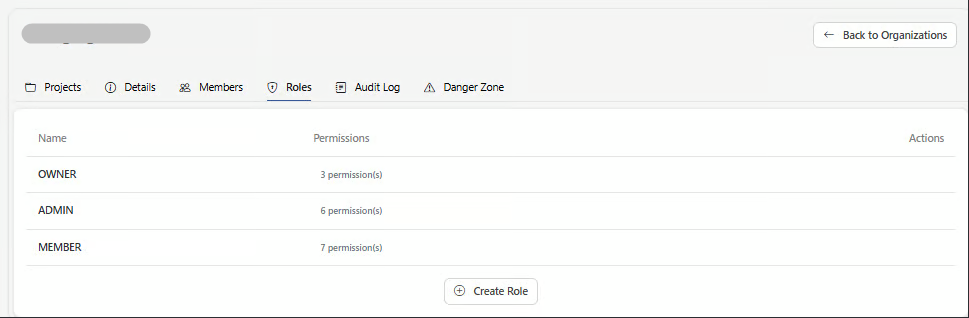
The Roles tab lets you view built-in roles and create custom roles with specific permissions, enabling **Role Based Access Control (RBAC)** for your organization.
***
### Default Roles
NeevCloud includes three built-in roles:
| Role | Description |
| ---------- | --------------------------------------------------------- |
| **Owner** | Full control over the organization, projects, and billing |
| **Admin** | Can manage members, projects, and settings |
| **Member** | Standard access to view and use projects |
***
### Creating a Custom Role
1. Go to the **Roles** tab
2. Click **Create Role**
3. Enter a **name** for the role
4. Select the **permissions** you want to grant
5. Click **Save**
You can assign granular permissions to any custom role based on your team's needs.
***
### Assigning a Role
Roles are assigned when:
* **Adding a new member** — select the role during the invite process
* **Updating an existing member** — change the role from the Members tab
***
### Permission Scope
Permissions in a role can control access to:
* Viewing and managing projects
* Managing members
* Editing organization settings
* Accessing billing information
* Viewing audit logs
> **Note:** You can only assign roles that are equal to or below your own permission level.