> For the complete documentation index, see [llms.txt](https://docs.neevcloud.com/llms.txt). Markdown versions of documentation pages are available by appending `.md` to page URLs; this page is available as [Markdown](https://docs.neevcloud.com/neevcloud-guide/troubleshoot/resolving-remote-desktop-account-lockout-using-group-policy.md).
# Resolving Remote Desktop Account Lockout using Group Policy
### Introduction
Sometimes when multiple incorrect login attempts are made while connecting through Remote Desktop Protocol (RDP), the Windows system automatically locks the user account for security reasons. This prevents unauthorized access attempts.
To resolve this issue, the **Account Lockout Policy** can be modified using the **Local Group Policy Editor**.
***
**Step 1: Error Message While Connecting to Remote Desktop**
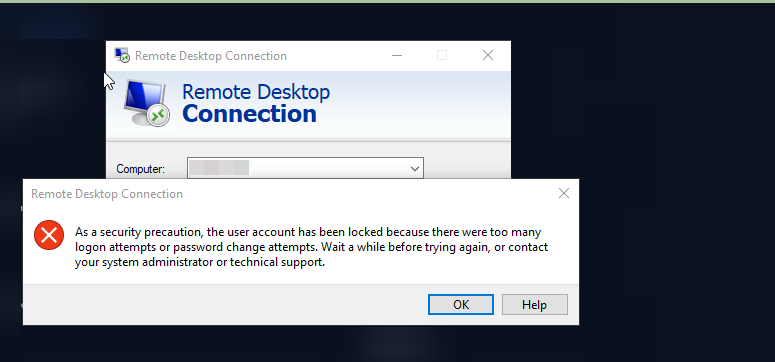
When attempting to log in via Remote Desktop, the following error message appears:
> *"As a security precaution, the user account has been locked because there were too many logons attempts or password change attempts."*
This means the account has been temporarily locked due to multiple incorrect login attempts.
**RDP account locked error message.**
***
**Step 2: Open Group Policy Editor**
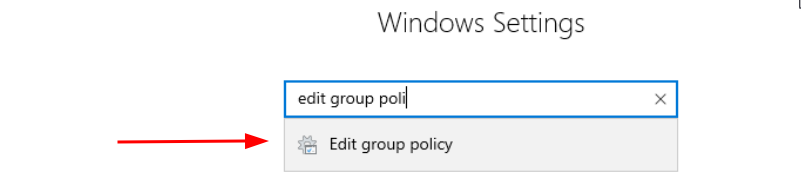
1. Open the **Start Menu**.
2. In the search bar, type **Edit Group Policy**.
3. Click on **Edit Group Policy** from the search results.
**Search Edit Group Policy in Windows Settings**
***
**Step 3: Navigate to Computer Configuration**
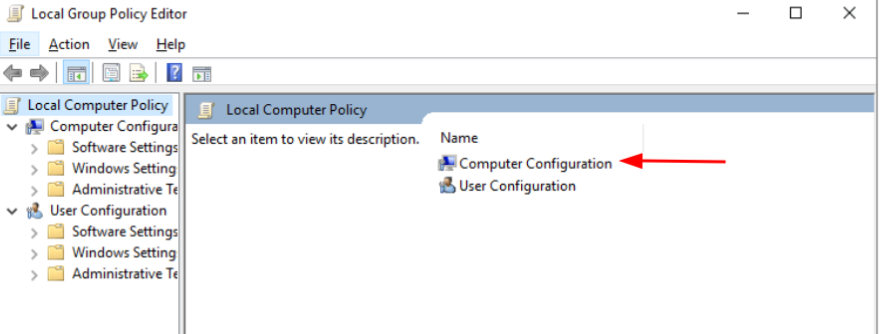
Once the **Local Group Policy Editor** window opens:
1. Click on **Local Computer Policy**.
2. Select **Computer Configuration**.
***
**Step 4: Open Windows Settings**
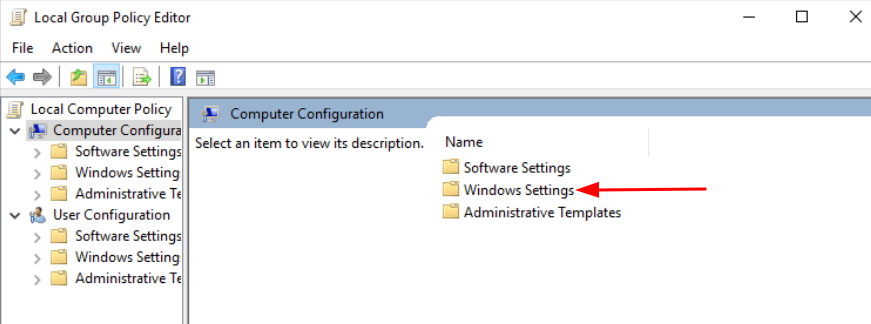
Inside **Computer Configuration**:
1. Click on **Windows Settings**.
***
**Step 5: Open Security Settings**
Inside **Windows Settings**:
1. Click on **Security Settings**.
***
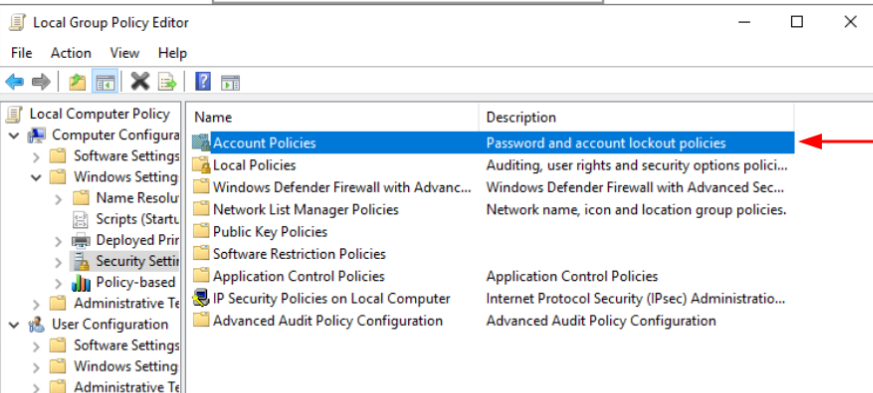
**Step 6: Open Account Policies**
Inside **Security Settings**:
1. Click on **Account Policies**.
***
**Step 7: Open Account Lockout Policy**
Under **Account Policies**:
1. Click on **Account Lockout Policy**.
***
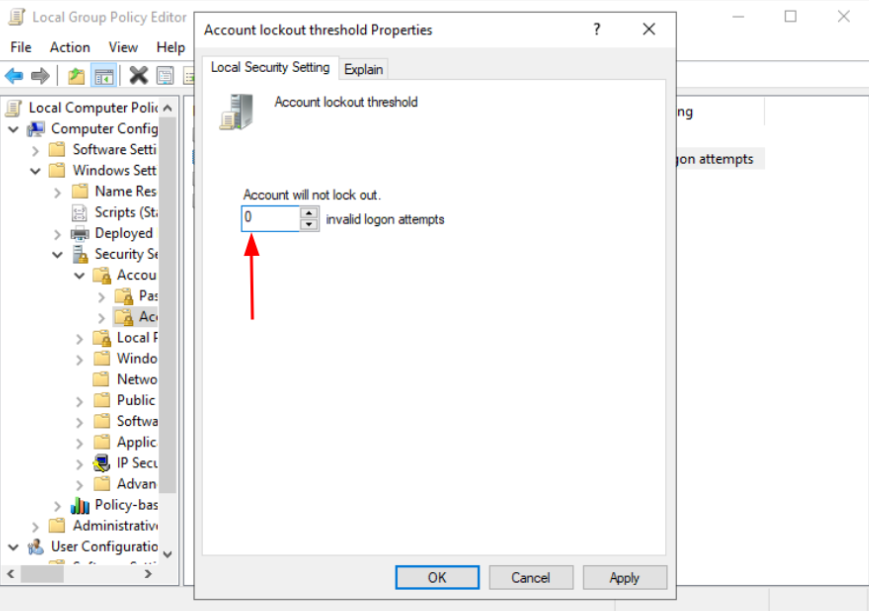
**Step 8: Modify Account Lockout Threshold**
In **Account Lockout Policy**:
1. Double-click **Account lockout threshold**.
2. Set the value to **0 invalid logon attempts**.
Setting this value to **0** means the account will **never be locked due to failed login attempts**.
***
**Step 9: Apply the Changes**
1. Click **Apply**.
2. Click **OK** to save the configuration.
Now the system will not lock the account after multiple failed login attempts.
***
**Conclusion**
By modifying the **Account Lockout Threshold** policy through the Local Group Policy Editor, we can prevent user accounts from being locked due to multiple incorrect login attempts. This helps administrators troubleshoot login issues more efficiently in environments where Remote Desktop access is frequently used.