> For the complete documentation index, see [llms.txt](https://docs.neevcloud.com/llms.txt). Markdown versions of documentation pages are available by appending `.md` to page URLs; this page is available as [Markdown](https://docs.neevcloud.com/neevcloud-products/computes/launch-instance-by-1-click-marketplace-platform/create-an-openclaw-instance-from-the-neevcloud-marketplace.md).
# Create an OpenClaw Instance from the Neevcloud Marketplace
### Create an OpenClaw Instance
OpenClaw is available as a ready-to-deploy image in the Neevcloud Marketplace. This image comes with OpenClaw preinstalled and the service enabled on the Instance. After deployment, you only need to connect to the instance and complete the OpenClaw onboarding process with your own configuration.
***
### Select Image
Select the OpenClaw image from the Neevcloud Marketplace.
* Log in to the Neevcloud dashboard.
* Open the **Marketplace** section.
* Select the OpenClaw image and continue with instance creation.
***
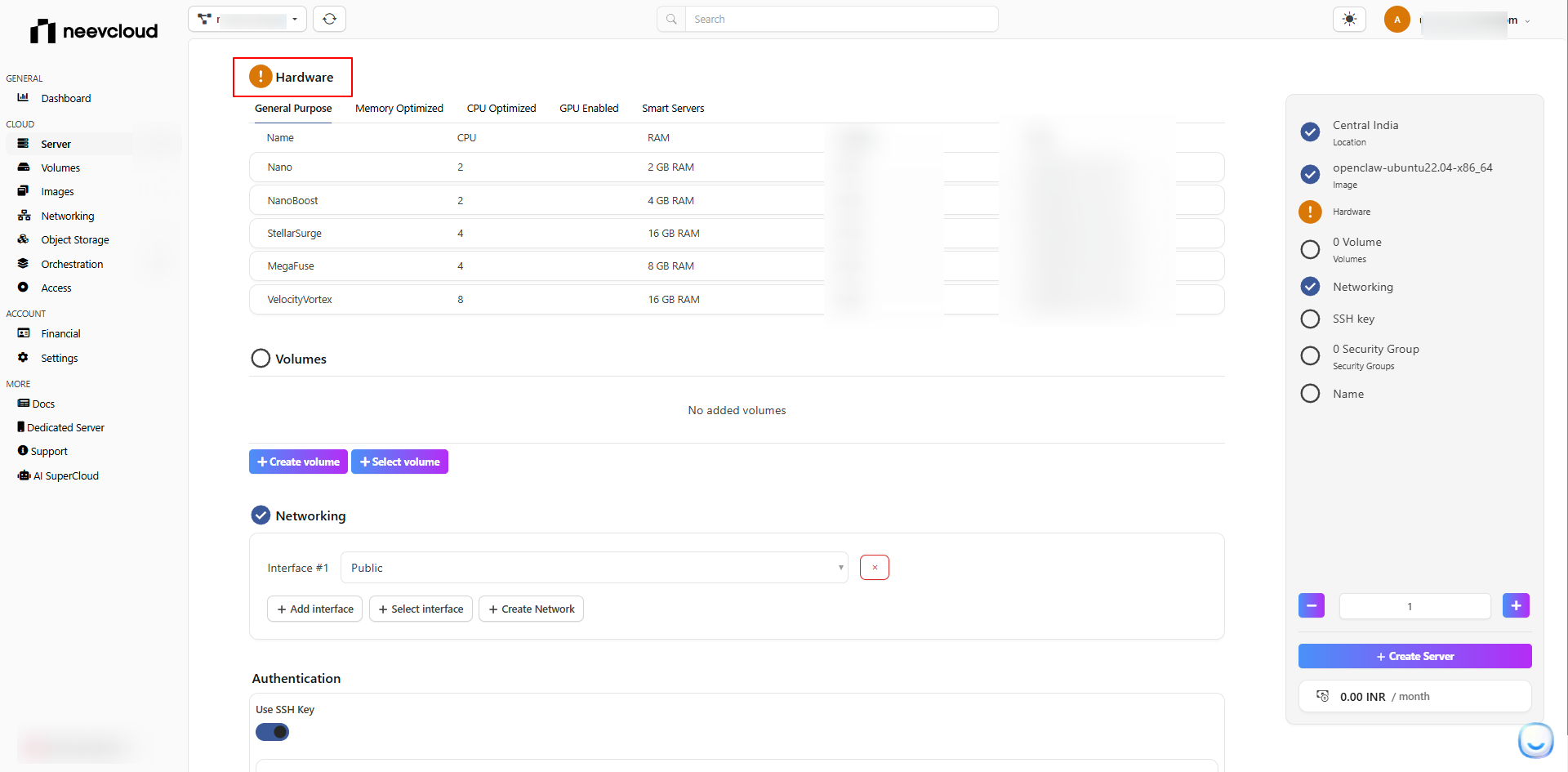
### Hardware Configuration
Choose the required instance [flavor ](/neevcloud-products/computes/compute-flavors.md)based on your expected workload.
{% hint style="info" %}
Use a larger configuration if you plan to run heavier workflows or additional integrations on the same Instance.
{% endhint %}
***
### Select the volumes
Choose the root volume size for the instance.
Recommended minimum:
* **Root Disk:** 20 GB
Increase the disk size if you expect additional logs, workspace data, or future package installations.
***
### Network configuration
Configure the network settings for the instance.
* Select the required [**VPC** ](/neevcloud-products/networking/network/create-network-with-private-ip.md)or network.
* Assign a **public IP** if you want to access the VM directly over SSH from the internet.
* Make sure the selected network allows outbound internet access if OpenClaw needs to connect to external APIs or services.
***
### Authentication
Select the authentication method for the instance.
#### SSH Key
This is the recommended option.\
Select an existing SSH key pair or create a new one and attach it to the instance.
#### Password
Use password-based login only if it is required in your environment.
***
### Add Security Group
Attach a security group that allows the required access to the Instance.
Minimum recommended rule:
* **SSH (TCP 22)** from your trusted IP range
{% hint style="info" %}
Do not expose unnecessary ports publicly unless specifically required.
{% endhint %}
If needed, create a [new security group](/neevcloud-products/networking/security-groups/add-security-group.md) and add the required inbound rule before launching the instance.
***
### Name
Enter the server name for the instance.
Choose a clear name so the instance can be identified easily later.
Example:
* `openclaw-server-1`
* `openclaw-prod`
* `openclaw-test`
***
### Create Server
After completing the configuration:
* Verify networking
* Verify SSH key selection
* Verify security group
* Enter the server name
Then click **Create Server** to deploy the OpenClaw instance.
***
### Note for Users
After the server is created and you log in, a setup note is already available on the VM.
Run:
> cat /root/openclaw\_setup\_details.txt
This file contains the next required steps, including:
* checking OpenClaw service status
* running onboarding
* Restarting the service if needed
* viewing logs