# Bastion (Jump) Host Setup for Secure Remote Access

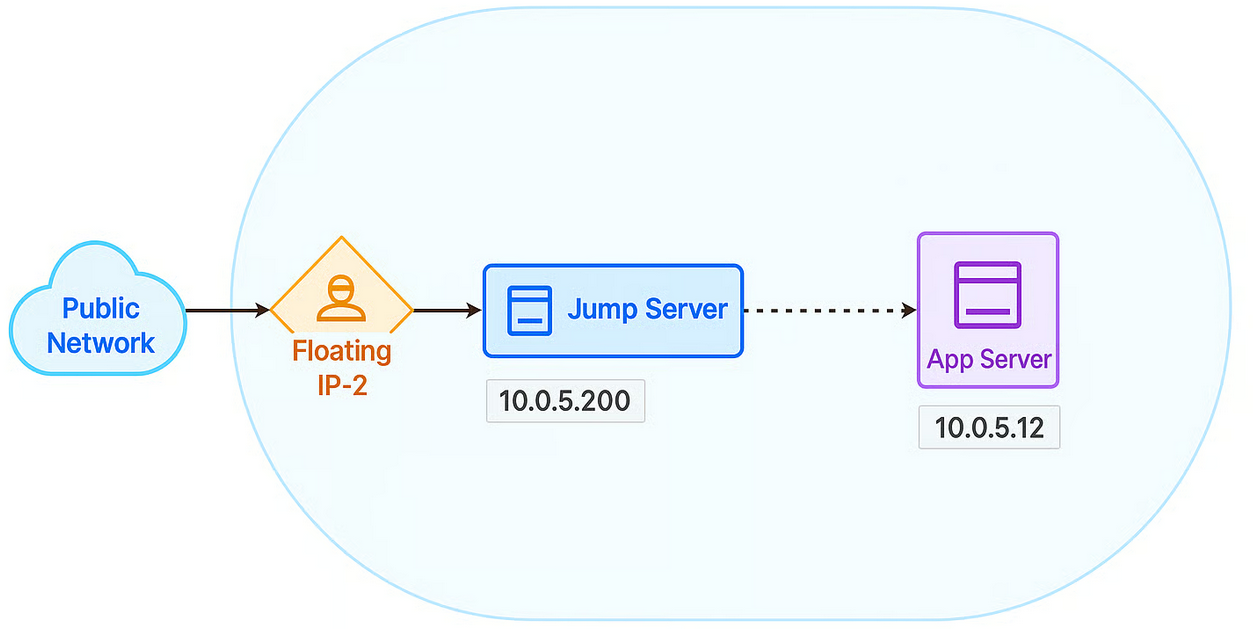
Use a Bastion (Jump) Server to access internal resources within a private network securely. This acts as a controlled gateway for administrative tasks, reducing exposure of backend servers to the public internet.

In this use case, we demonstrate how NeevCloud enables secure cloud networking by implementing a Virtual Private Cloud (VPC) along with a Jump Server for secure administrative access. This setup ensures enhanced security, controlled access, and an isolated environment suitable for hosting web applications.

<figure><img src="https://1876135298-files.gitbook.io/~/files/v0/b/gitbook-x-prod.appspot.com/o/spaces%2FEC5NwtFshv6EATOemuUn%2Fuploads%2FTIcL6FsIiSLeOLw0QNue%2Fimage.png?alt=media&#x26;token=0cdc0f86-2ed6-4fe4-bdfb-cfd9fbe33c29" alt=""><figcaption></figcaption></figure>

## Step-by-Step Implementation

## Step 1: Create a Private Network

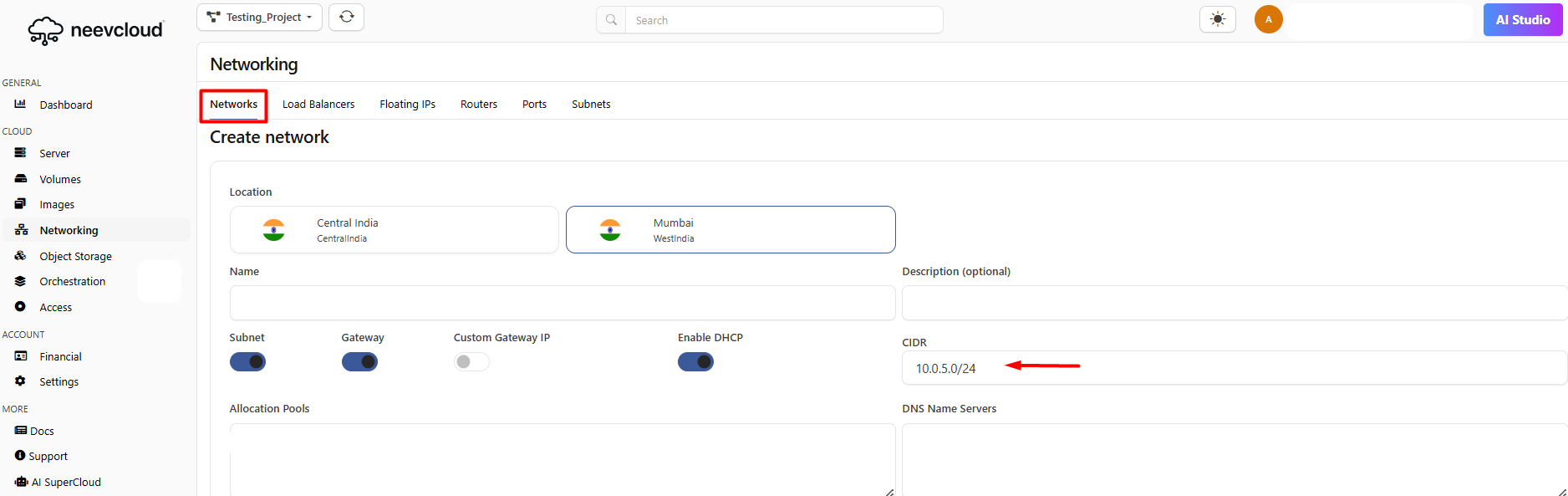
* **Navigate to**: `Networking > Network` In the NeevCloud portal.
* **Action**:
  * Provide a name for the network.
  * Set CIDR to `10.0.5.0/24`.
  * Leave other options at the default and create the network.

<figure><img src="https://1876135298-files.gitbook.io/~/files/v0/b/gitbook-x-prod.appspot.com/o/spaces%2FEC5NwtFshv6EATOemuUn%2Fuploads%2FkU7bOSmF7lRG23QbMK3R%2Fimage.png?alt=media&#x26;token=b11c1efb-3de8-4b89-972f-068a33a357c3" alt=""><figcaption></figcaption></figure>

## Step 2: Deploy a Router

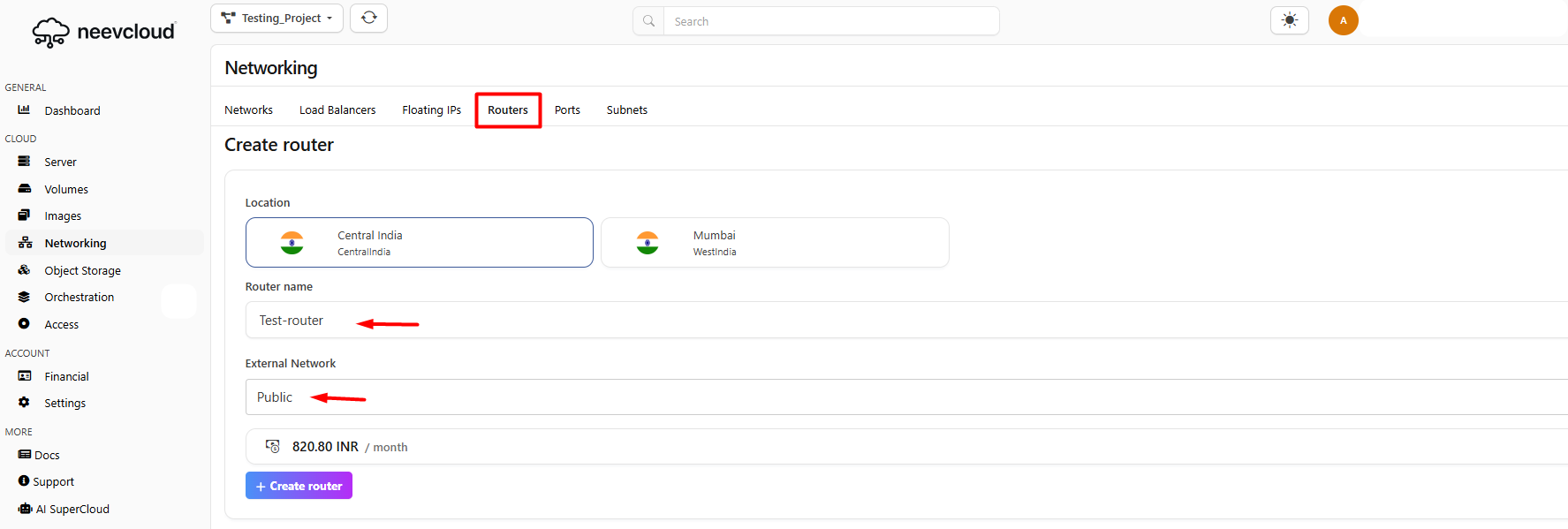
* **Navigate to**: `Networking > Routers`.
* **Action**:
  * Create a router and a name.
  * Set the external gateway to the Public Networ**k**.

<figure><img src="https://1876135298-files.gitbook.io/~/files/v0/b/gitbook-x-prod.appspot.com/o/spaces%2FEC5NwtFshv6EATOemuUn%2Fuploads%2FuvFbcfJxYOg1F5WqxxBh%2Fimage.png?alt=media&#x26;token=11cc45ed-e7b9-44c0-9959-113cc916b08a" alt=""><figcaption></figcaption></figure>

* Now, click on the add interface and add the private network (`10.0.5.0/24`) as an interface.

<figure><img src="https://1876135298-files.gitbook.io/~/files/v0/b/gitbook-x-prod.appspot.com/o/spaces%2FEC5NwtFshv6EATOemuUn%2Fuploads%2FjNYRdPv00DNs43gHg0qq%2Fimage.png?alt=media&#x26;token=f1182d66-575b-47c3-9d38-3c94f8ff3b04" alt=""><figcaption></figcaption></figure>

## Step 3: Launch Cloud Instance

Now, back to the neevcloud dashboard and click on the server section to create a cloud server

* **App Servers:**
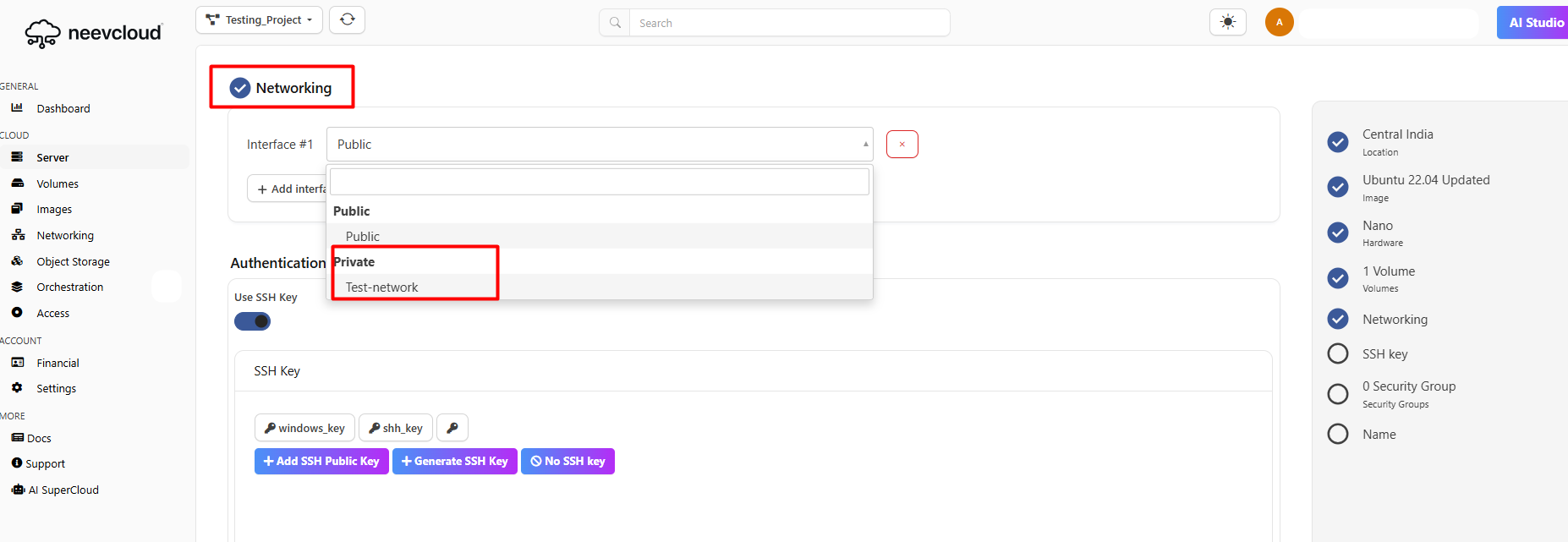
  * Launch instance with private IPs assigned.
  * Assign them to the private VPC.
  * Avoid attaching to the public network.

{% hint style="info" %}
Note: To launch an instance, you must select a network from the Private Network section
{% endhint %}

To launch a [server ](https://docs.neevcloud.com/neevcloud-products/computes/getting-started-launch-vms)

<figure><img src="https://1876135298-files.gitbook.io/~/files/v0/b/gitbook-x-prod.appspot.com/o/spaces%2FEC5NwtFshv6EATOemuUn%2Fuploads%2FUmf3yHRCNrxKvrVQO1h8%2Fimage.png?alt=media&#x26;token=3c6d0034-3355-49d1-9979-319fc542faba" alt=""><figcaption></figcaption></figure>

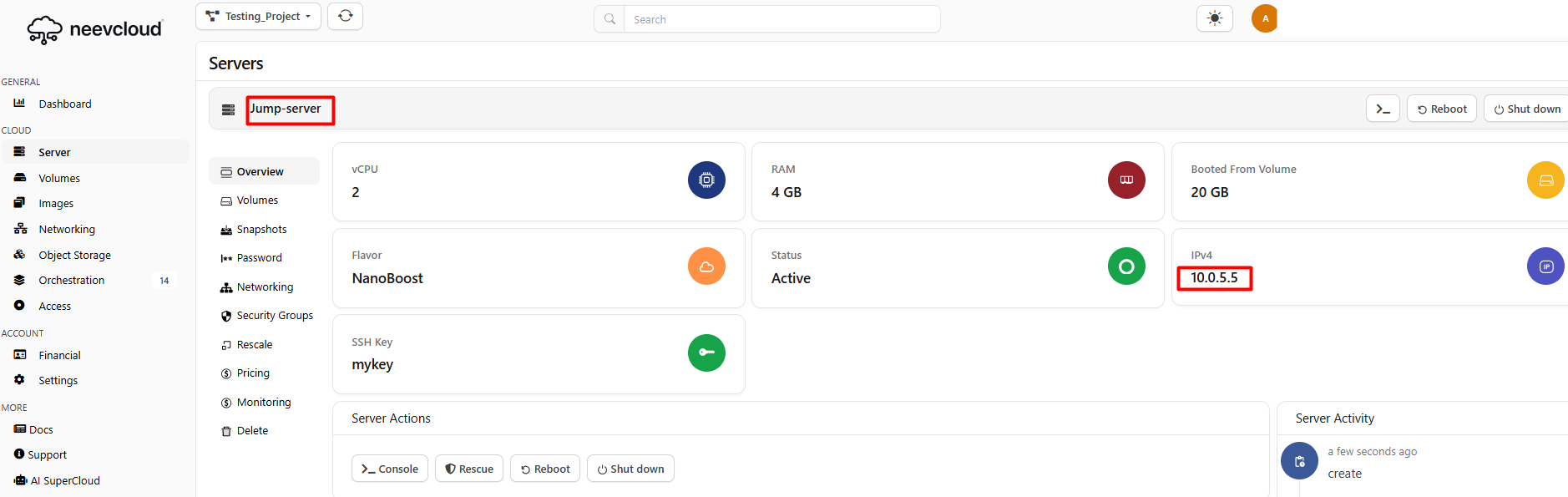
Let's verify whether the server has been assigned a private IP address.

<figure><img src="https://1876135298-files.gitbook.io/~/files/v0/b/gitbook-x-prod.appspot.com/o/spaces%2FEC5NwtFshv6EATOemuUn%2Fuploads%2FuEVUpD88gOSdpItWFOUr%2Fimage.png?alt=media&#x26;token=35dbaa61-e099-4ea4-882f-f3d93e6738e7" alt=""><figcaption></figcaption></figure>

* **Jump Server:**
  * Launch one more instance and assign it to the private network.
  * Avoid attaching the public network to maintain restricted access.
  * Assign a floating IP for external access.

<figure><img src="https://1876135298-files.gitbook.io/~/files/v0/b/gitbook-x-prod.appspot.com/o/spaces%2FEC5NwtFshv6EATOemuUn%2Fuploads%2FOPli4msKLMEIVpBVyWXD%2Fimage.png?alt=media&#x26;token=c8288331-a47f-4f6d-b978-ad07fef4d8d7" alt=""><figcaption></figcaption></figure>

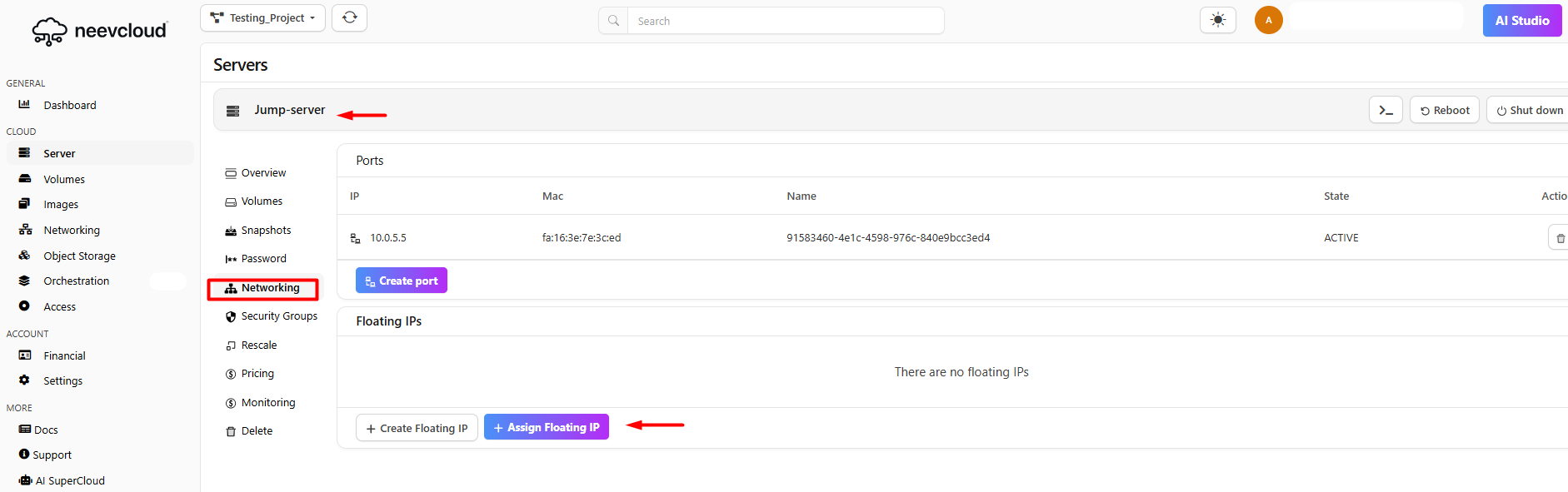
Once the Jump Server is successfully launched, allocate the assigned Floating IP to it

## Step 4: Allocate and Associate Floating IPs

* **Navigate to**: `Networking > Floating IPs`.
* **Action**:
  * Allocate floating IPs from the public IP pool:

<figure><img src="https://1876135298-files.gitbook.io/~/files/v0/b/gitbook-x-prod.appspot.com/o/spaces%2FEC5NwtFshv6EATOemuUn%2Fuploads%2FsujWSBBuAKZ03mAbYXYm%2Fimage.png?alt=media&#x26;token=44f0f12b-61ae-44be-a441-a3712e344b4d" alt=""><figcaption></figcaption></figure>

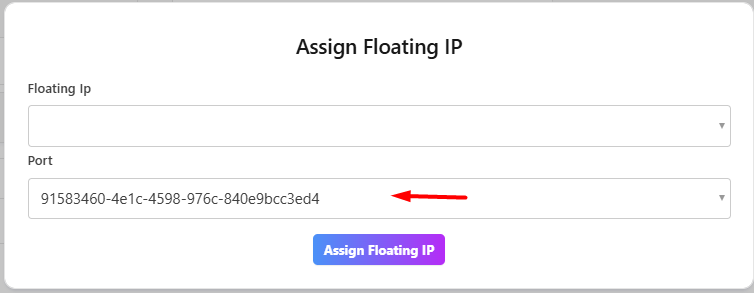
Now go back to the Jump Server, click on the Networking section, and assign the Floating IP.

Associate:

* **Floating IP:** Linked to the Jump Server for secure external access.

<figure><img src="https://1876135298-files.gitbook.io/~/files/v0/b/gitbook-x-prod.appspot.com/o/spaces%2FEC5NwtFshv6EATOemuUn%2Fuploads%2FerfB9F5GEmSJeIPw48Tb%2Fimage.png?alt=media&#x26;token=ca80143c-d6d1-425f-84eb-6d53bb1d5e5d" alt=""><figcaption></figcaption></figure>

<figure><img src="https://1876135298-files.gitbook.io/~/files/v0/b/gitbook-x-prod.appspot.com/o/spaces%2FEC5NwtFshv6EATOemuUn%2Fuploads%2FwZOdCBc9TOHUbXECKJgX%2Fimage.png?alt=media&#x26;token=921b55a1-2406-4f79-b282-8858a67d711f" alt=""><figcaption></figcaption></figure>

The IP has been assigned.

<figure><img src="https://1876135298-files.gitbook.io/~/files/v0/b/gitbook-x-prod.appspot.com/o/spaces%2FEC5NwtFshv6EATOemuUn%2Fuploads%2F4sCXPsjaOEWOI37Tm37K%2Fimage.png?alt=media&#x26;token=b44178ab-699c-462e-8a16-7833a79ffd0e" alt=""><figcaption></figcaption></figure>

## Access Jump server

```
cd Downloads
```

```
ssh -i your-key.pem ubuntu@your-jump-server-ip
```

<figure><img src="https://1876135298-files.gitbook.io/~/files/v0/b/gitbook-x-prod.appspot.com/o/spaces%2FEC5NwtFshv6EATOemuUn%2Fuploads%2FOIzKZ0fBKLtOw8OJlY8O%2Fimage.png?alt=media&#x26;token=ef8f8228-c6da-4567-b0f7-3023fbf554ed" alt=""><figcaption></figcaption></figure>

{% hint style="info" %}
Once the jump server is set up and accessible, you can use it as a secure gateway to connect to the application server.
{% endhint %}

Now, access your private App server.

Here you can access your server using a password or an SSH key

Now, set the password for your private server

<figure><img src="https://1876135298-files.gitbook.io/~/files/v0/b/gitbook-x-prod.appspot.com/o/spaces%2FEC5NwtFshv6EATOemuUn%2Fuploads%2FfuXtpHNtBJnYUIDPBYBY%2Fimage.png?alt=media&#x26;token=36f650cc-ecdd-416a-ad89-d65dde344a16" alt=""><figcaption></figcaption></figure>

Now, copy your server IP address (private IP).

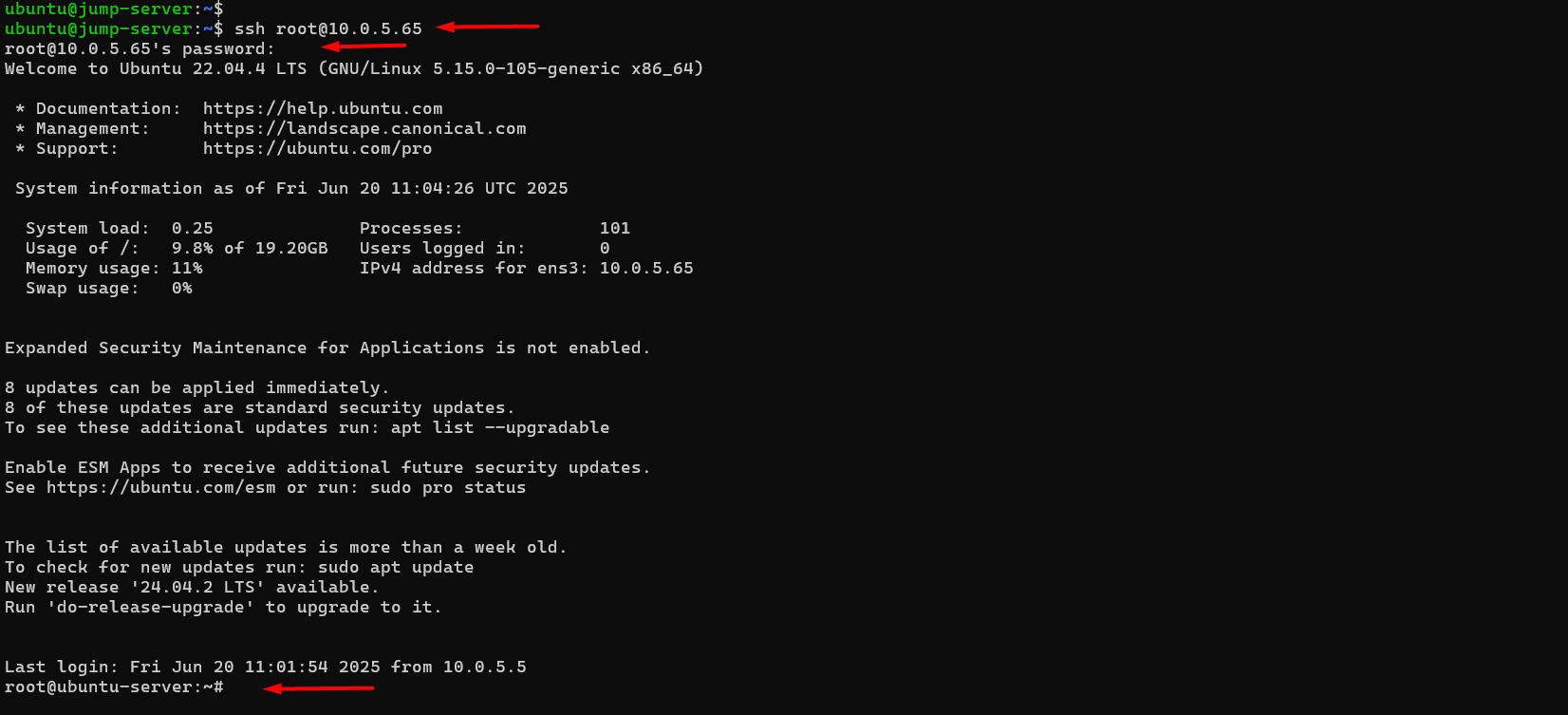
Now, back to the Jump server and access your server

```
ssh username@Private-server-ip
```

<figure><img src="https://1876135298-files.gitbook.io/~/files/v0/b/gitbook-x-prod.appspot.com/o/spaces%2FEC5NwtFshv6EATOemuUn%2Fuploads%2FA0SnHFsFGIwApjTPxcip%2Fimage.png?alt=media&#x26;token=b60f6bc9-085c-41ac-a432-824abf1ca2db" alt=""><figcaption></figcaption></figure>

Network connectivity has been successfully established using the command executed.

```
ping 8.8.8.8
```
<figure><img src="https://1876135298-files.gitbook.io/~/files/v0/b/gitbook-x-prod.appspot.com/o/spaces%2FEC5NwtFshv6EATOemuUn%2Fuploads%2FwWnoLvs5GK49sENkONkJ%2Fimage.png?alt=media&#x26;token=d499148c-afc8-43ee-9a3d-a8d24759e147" alt=""><figcaption></figcaption></figure>