> For the complete documentation index, see [llms.txt](https://docs.neevcloud.com/llms.txt). Markdown versions of documentation pages are available by appending `.md` to page URLs; this page is available as [Markdown](https://docs.neevcloud.com/neevcloud-products/security/vpn-creation-in-firewall-appliance-in-neevcloud.md).
# VPN creation in Firewall appliance in NeevCloud
## **Step 1: Set Up a VPN User**
1. **Log in to FortiGate GUI**: Open a web browser and navigate to the IP address of\
your FortiGate device. Enter your credentials to log in.
2. **Create a User:**
* Go to User & Device > User Definition.
* Click Create Newcreate new
* Enter a Username and Password for the new user
* Click ok
## Step 2: Configure VPN Settings
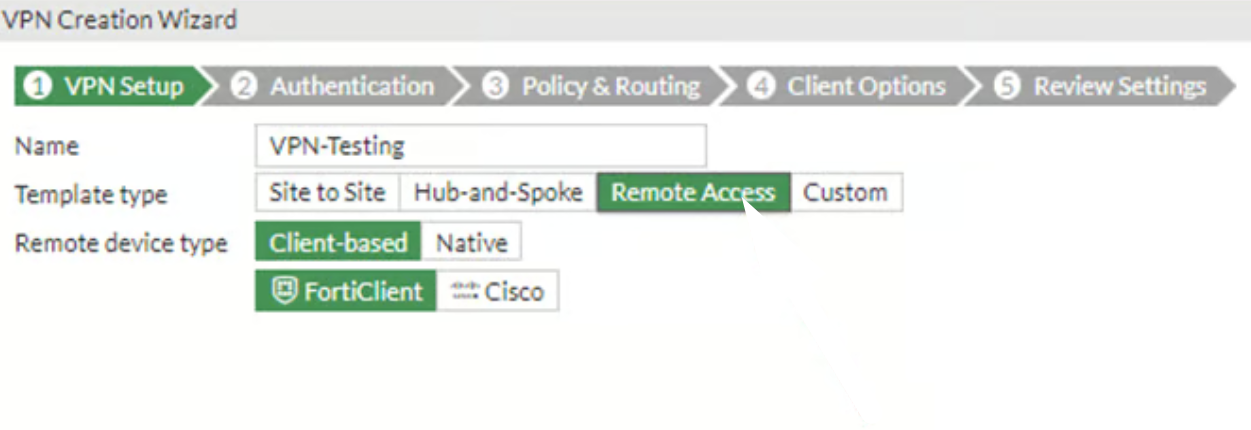
1. **IPsec VPN Wizard:**
* Go to VPN > IPsec Wizard.
* Click Create new.
2. **VPN Setup:**
* VPN Setup selection: Choose Remote Access.
* Template Type: Select FortiClient VPN (iOS/Android) or Custom, depending on your client device.
* Name: Enter a name for your VPN (e.g., RemoteVPN).
* Remote Device: FortiClient VPN.
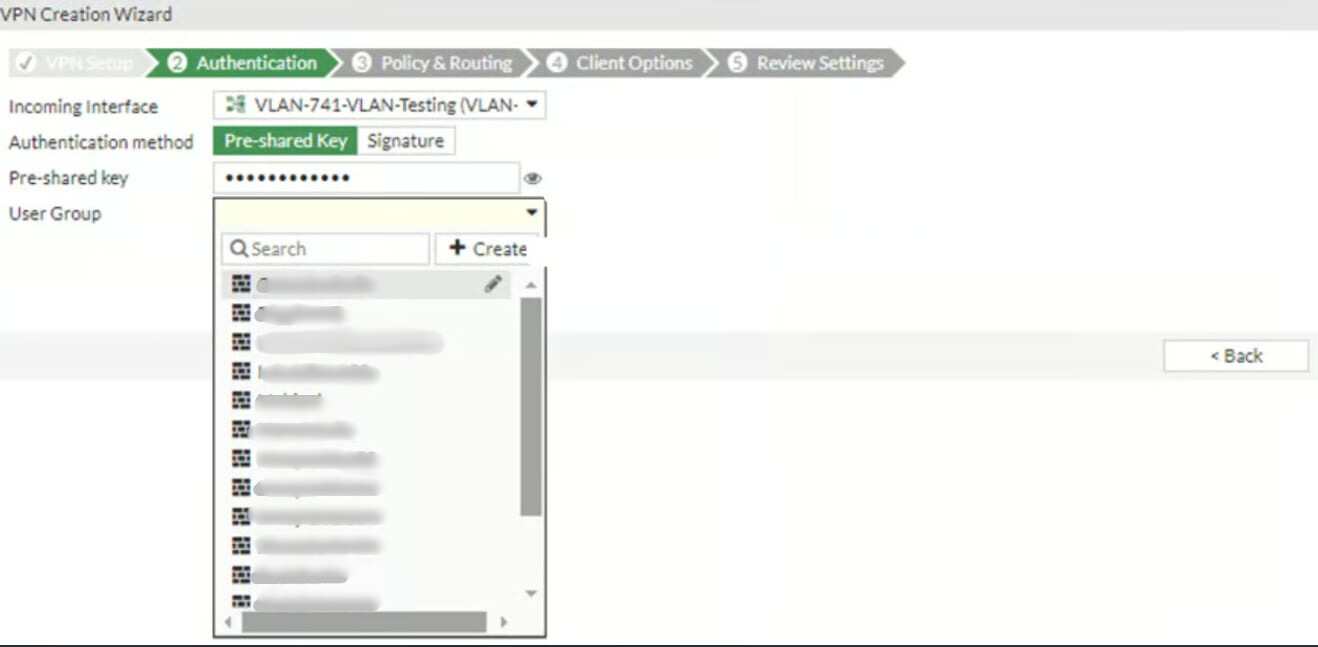
3. **Authentication Method**:
* Incoming: Select the interface connected to the internet (e.g.,\
wan1).
* Authentication Method: Choose Pre-Shared Key
* Pre-Shared Key: Enter a pre-shared key (password) for the VPN connection.
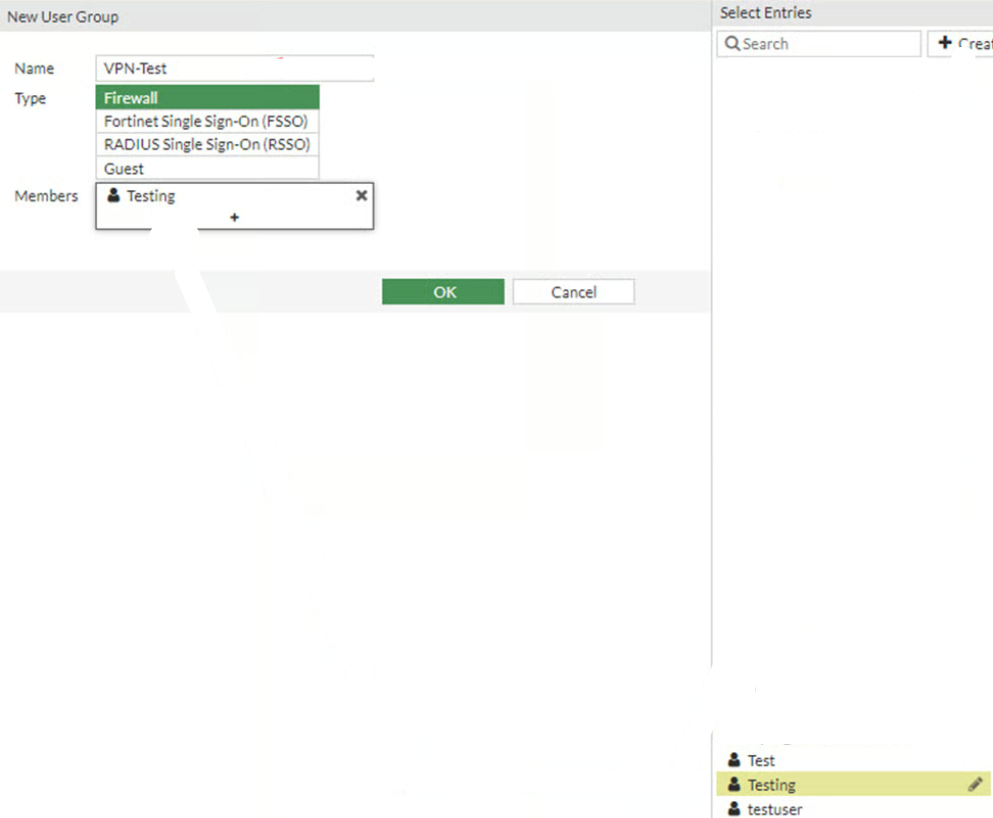
4. **User Group:** Under User Group, select the user group that includes the user created earlier.
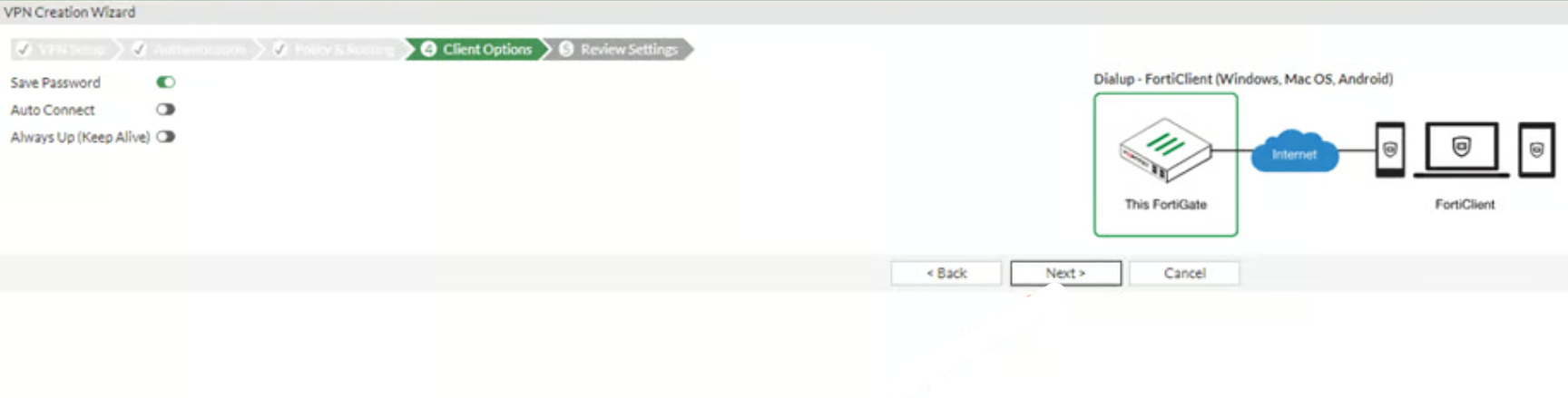
4. **Network Settings:**
* Local Interface: Select the local interface (e.g., LAN).
* Local Address: Select the local network (e.g., Subnet).
* Client Address Range: Enter an IP address range that will be assigned to\
remote VPN clients.
6. **Phase 1 & Phase 2 Settings:** Configure the encryption and authentication settings for both Phase 1 and Phase 2. **The default settings are usually sufficient, but you can customize**\
**them based on your security requirements.**
7. **Security Policy:** Ensure the policy for the VPN traffic is automatically created. If not, you will need to create it manually.
8. **Review & Create:** Review all the settings and click create.
## Step 3: Create Firewall Policy
1. Policy & Objects:
* Go to Policy & object > IPV4 policy
* Click Create New
2. Firewall Policy:
* Name: Enter a name for the policy (e.g., RemoteVPN\_Policy).
* Incoming Interface: Select the VPN interface (e.g., ssl.root)
* Outgoing Interface: Select the LAN interface (e.g., internal).
* Source: Select the VPN user group or IP range.
* Destination: Select the internal network or specific resources.
* Service: Select ALL or specify the required services.
* Action: Set to Accept.
* Enable NAT: If required
3. Logging Options: Enable logging for traffic if needed.
4. Save Policy: Click OK to save the policy.
## Step 4: Test the VPN Connection
1. Download FortiClient:
* Download and install the FortiClient VPN application on the remote device (PC, Smartphone, etc).
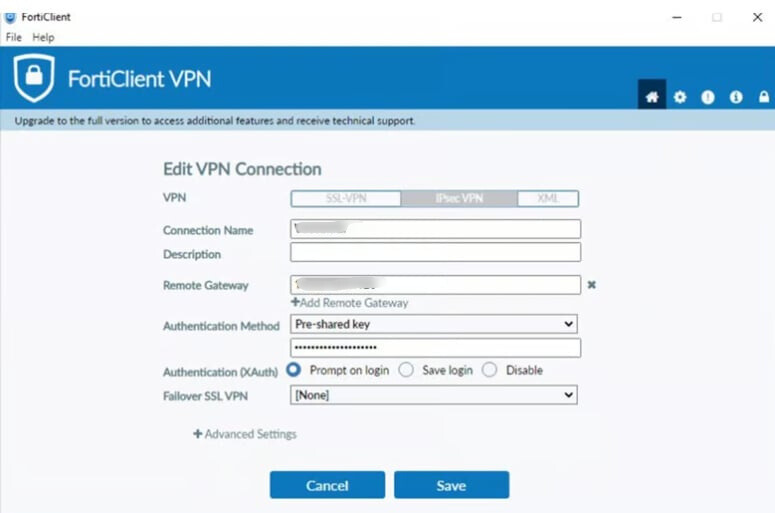
2. Configure FortiClient:
* Open FortiClient and go to the Remote Access section.
* Click Configure VPN.
* Enter the VPN Name, Remote Gateway (public IP of FortiGate), and Pre-Shared Key.
* Enter the username and password for the VPN user.
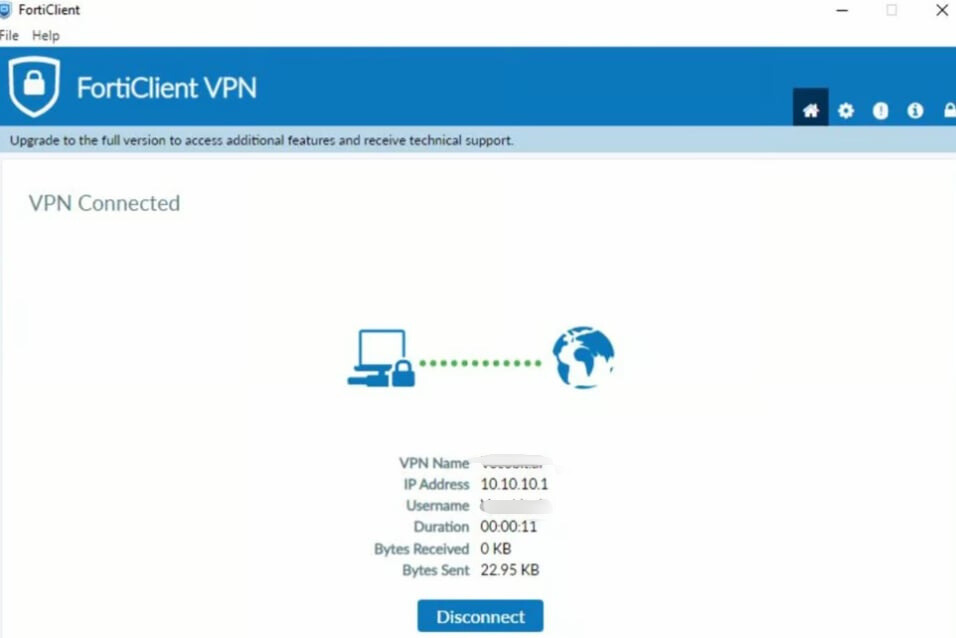
3. Connect: Click Connect to establish the VPN connection.