# Initialize New Volume in Windows Server

***

**Prerequisites**

* You must be logged in as **Administrator**.
* The new disk has been **attached** to your Windows Server via the NeevCloud dashboard. [Link](https://docs.neevcloud.com/neevcloud-products/volumes/attach-volume-to-instance)
* Remote Desktop (RDP) access is enabled.

***

**Step-by-Step Process**

**Open Disk Management**

* Press **Windows + R**, type `diskmgmt.msc`, and click **OK**.
* This opens the **Disk Management** window.

<figure><img src="https://68979320-files.gitbook.io/~/files/v0/b/gitbook-x-prod.appspot.com/o/spaces%2FbG7OCFy7bphDWnjtENh1%2Fuploads%2Fa3z8quCMC7I5W7miZK6X%2Fimage.png?alt=media&#x26;token=539b3cf6-40b1-491c-8faa-514f04ff11f3" alt=""><figcaption></figcaption></figure>

***

**Locate the New Disk**

* Scroll down and find the disk showing **“Unknown”** or **“Offline”** (e.g., *Disk 1*).
* It will appear with a **black bar** and label “Unallocated.”

<figure><img src="https://68979320-files.gitbook.io/~/files/v0/b/gitbook-x-prod.appspot.com/o/spaces%2FbG7OCFy7bphDWnjtENh1%2Fuploads%2FpxURJyACeO0QqHHAceU4%2Fimage.png?alt=media&#x26;token=19e352fb-8e5b-40b8-b948-9c159ecb89a8" alt=""><figcaption></figcaption></figure>

***

**Bring the Disk Online**

* Right-click on the disk name (left side, e.g., *Disk 1*) → select **Online**.

<figure><img src="https://68979320-files.gitbook.io/~/files/v0/b/gitbook-x-prod.appspot.com/o/spaces%2FbG7OCFy7bphDWnjtENh1%2Fuploads%2F0dciMDD76FBTYDWY3T2T%2Fimage.png?alt=media&#x26;token=ef4fec1b-6aa9-4428-ab1d-f7015ba97698" alt=""><figcaption></figcaption></figure>

***

**Initialize the Disk**

* Right-click again on the same disk → select **Initialize Disk**.

<figure><img src="https://68979320-files.gitbook.io/~/files/v0/b/gitbook-x-prod.appspot.com/o/spaces%2FbG7OCFy7bphDWnjtENh1%2Fuploads%2FPWqCWBr3XIGNmmyxMUPQ%2Fimage.png?alt=media&#x26;token=79f5e6ec-569d-44cf-9c84-7d69b5644c96" alt=""><figcaption></figcaption></figure>

Choose **GPT (GUID Partition Table)** → click **OK**.

<figure><img src="https://68979320-files.gitbook.io/~/files/v0/b/gitbook-x-prod.appspot.com/o/spaces%2FbG7OCFy7bphDWnjtENh1%2Fuploads%2FzrPJGvlpeJrynC5cZx6S%2Fimage.png?alt=media&#x26;token=15dd648c-b1e0-461d-b418-59727f367e32" alt=""><figcaption></figcaption></figure>

***

**Create a New Simple Volume**

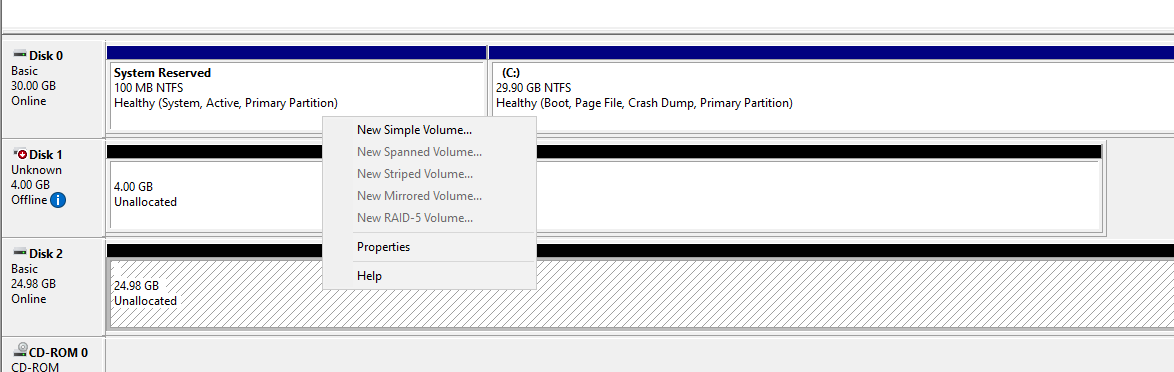
* Right-click on the **Unallocated space** → select **New Simple Volume**.

<figure><img src="https://68979320-files.gitbook.io/~/files/v0/b/gitbook-x-prod.appspot.com/o/spaces%2FbG7OCFy7bphDWnjtENh1%2Fuploads%2FI9KRuavlrGhdlBJi25in%2Fimage.png?alt=media&#x26;token=c89f8d94-3dc1-4eeb-bf89-a9a4d69fba1b" alt=""><figcaption></figcaption></figure>

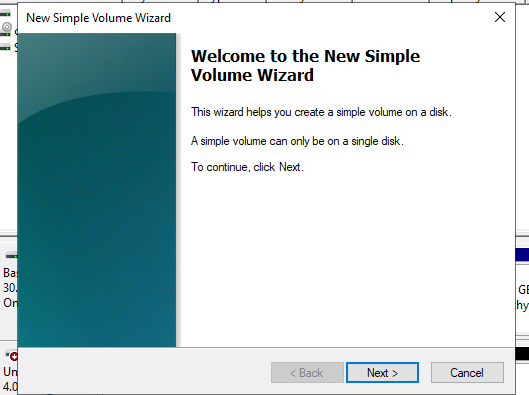
* The **New Simple Volume Wizard** will open.

<figure><img src="https://68979320-files.gitbook.io/~/files/v0/b/gitbook-x-prod.appspot.com/o/spaces%2FbG7OCFy7bphDWnjtENh1%2Fuploads%2FUIPPgR1icT2nL2SRrSfF%2Fimage.png?alt=media&#x26;token=d9fe7914-41fa-4fdf-9252-8215fa5e9d35" alt=""><figcaption></figcaption></figure>

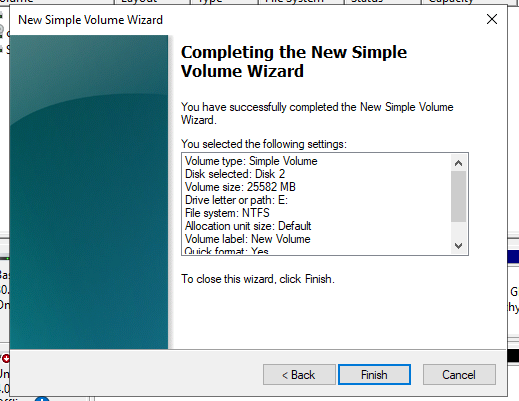
* Click **Next** until the end, keeping all default options:
  * Use full disk size
  * Assign any drive letter (e.g., E:)
  * Format as **NTFS** with **Quick Format** checked
  * Click **Finish**

<figure><img src="https://68979320-files.gitbook.io/~/files/v0/b/gitbook-x-prod.appspot.com/o/spaces%2FbG7OCFy7bphDWnjtENh1%2Fuploads%2FGVyertpJgURbXTOakULS%2Fimage.png?alt=media&#x26;token=e5fed779-61a9-4896-a829-314894b4997a" alt=""><figcaption></figcaption></figure>

<figure><img src="https://68979320-files.gitbook.io/~/files/v0/b/gitbook-x-prod.appspot.com/o/spaces%2FbG7OCFy7bphDWnjtENh1%2Fuploads%2FLnwcveSeNxt0bsoeWF65%2Fimage.png?alt=media&#x26;token=53a39490-f544-4583-a41b-bd7547d2ec30" alt=""><figcaption></figcaption></figure>

***

**Verify Volume Creation**

* Once completed, the new drive will appear as **Healthy (Primary Partition)** in Disk Management.
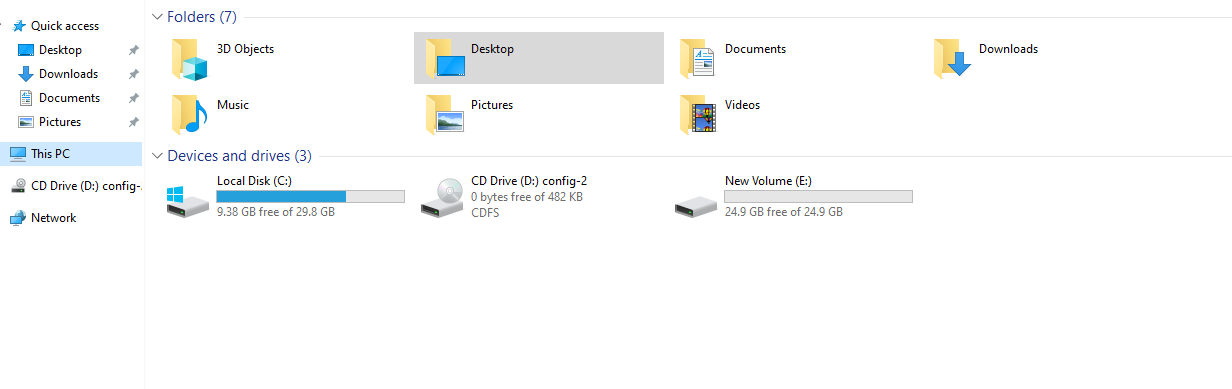
* Open **This PC** → The new drive (E:, F:, etc.) will now be visible and ready for use.

<figure><img src="https://68979320-files.gitbook.io/~/files/v0/b/gitbook-x-prod.appspot.com/o/spaces%2FbG7OCFy7bphDWnjtENh1%2Fuploads%2FnLkxUqrHAZx8KyPLwRVN%2Fimage.png?alt=media&#x26;token=0ed0bdd8-0a31-4578-aadd-fdf22d4e07ef" alt=""><figcaption></figcaption></figure>