> For the complete documentation index, see [llms.txt](https://docs.neevcloud.com/llms.txt). Markdown versions of documentation pages are available by appending `.md` to page URLs; this page is available as [Markdown](https://docs.neevcloud.com/neevcloud-guide/neevcloud-knowledgebase/installation-and-configuration-of-coolify.md).
# Installation and Configuration of Coolify
#### **Introduction**
Coolify is an open-source PaaS (Platform as a Service) used to deploy applications, databases, and services without writing Kubernetes or Docker commands manually.\
This document describes step-by-step installation and configuration of Coolify on Ubuntu 22.04.
***
**step 1: System Requirements**
| Component | Requirement |
| --------- | ------------------------------- |
| OS | Ubuntu Server 22.04 |
| RAM | Minimum 2 GB (recommended 4 GB) |
| CPU | Minimum 2 vCPU |
| Storage | 20 GB free |
| Network | Public or private IP |
***
**step 2: Pre-Installation Steps**
**2.1 Update the System**\
\
Before installing Coolify, it is essential to update the server to ensure all system packages, security patches, and repositories are up to date. This helps prevent compatibility issues during installation.
```bash
sudo apt update && sudo apt upgrade -y
```
**2.2 Install Required Packages**
```bash
sudo apt install -y curl ca-certificates gnupg lsb-release ufw
```
***
**step 3: Install Coolify (Official Method)**
Coolify provides an official installation script.
**3.1 Run the Installer**
```bash
curl -fsSL https://cdn.coollabs.io/coolify/install.sh | sudo bash
```
This script automatically:
* Installs Docker & Docker Compose
* Creates the `/data/coolify` directory
* Generates the `.env` configuration file
* Starts Coolify containers
* Exposes Coolify on port **8000**\
\
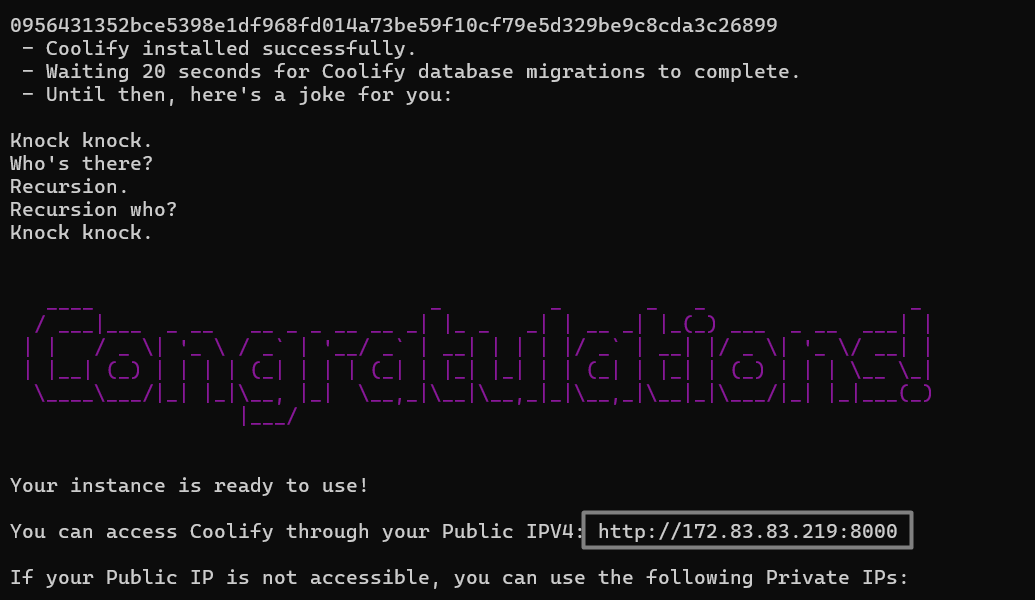
After running the Coolify installation script, the following message will appear on the screen. It indicates that the script is automatically performing all required tasks for installation
***
**step 4: Verify Installation**
**Check Running Containers**
```bash
sudo docker ps
```
You should see containers:
* `coolify`
* `coolify-redis`
* `coolify-db`
* `coolify-realtime`
* `coolify-sentinel`
***
**step 5: Firewall Configuration (UFW)**
Allow required ports:
```bash
sudo ufw allow 22/tcp
sudo ufw allow 80/tcp # Allow HTTP traffic
sudo ufw allow 443/tcp # Allow HTTPS traffic
sudo ufw allow 8000/tcp
sudo ufw allow 8443/tcp
sudo ufw reload
```
***
**step 6: Access Coolify Dashboard**
After the installation process is completed, the installer will display several URLs on the screen. \
These URLs include:
```
http://:8000
```
**6.1 Open the Coolify Dashboard**
Identify the **Public IP** or **Private IP** shown by the installer and open the URL in your web browser.\
This URL provides access to the Coolify web dashboard.\
\
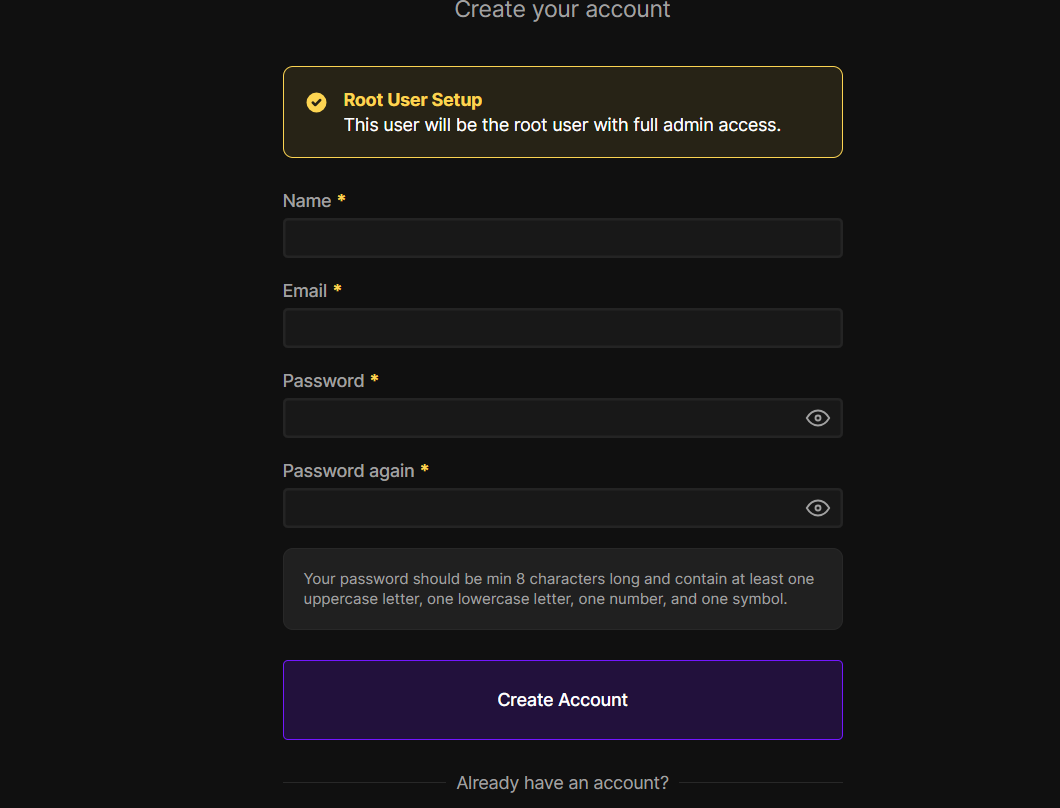
**6.2 Create the Admin (Root) Account**
When the dashboard loads for the first time, Coolify will prompt you to create a **Root User**. This user will have full administrative access to the platform.\
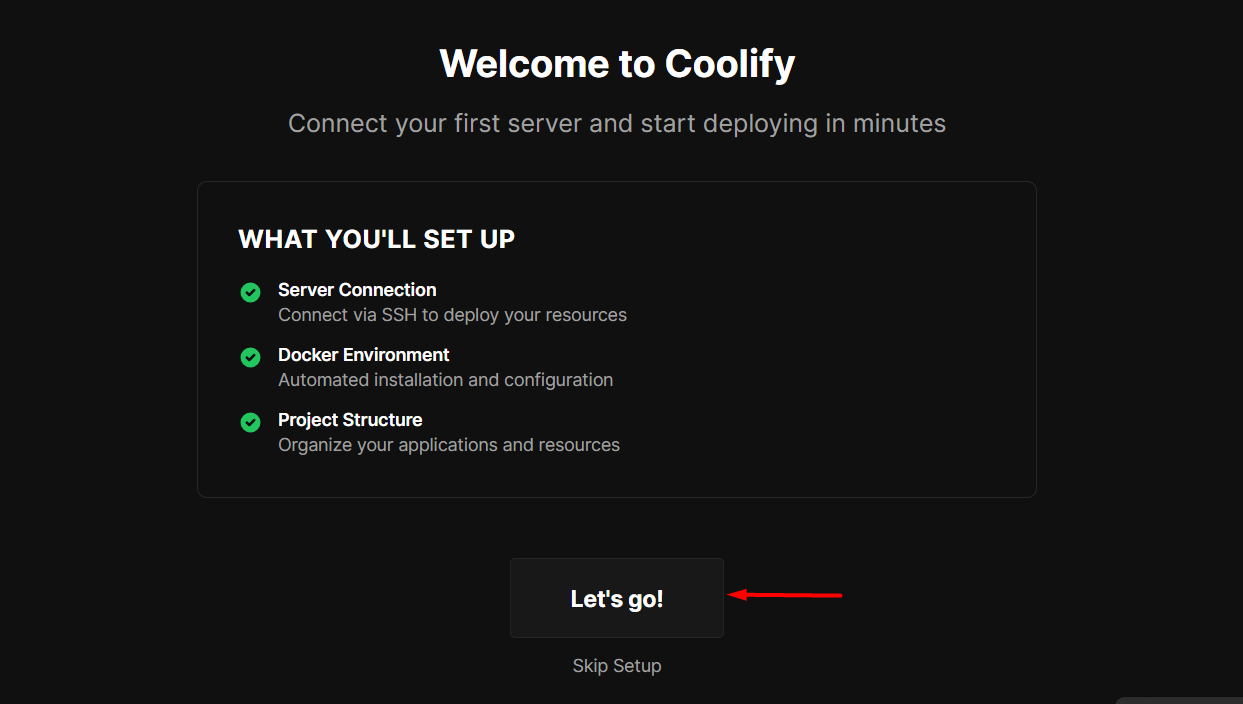
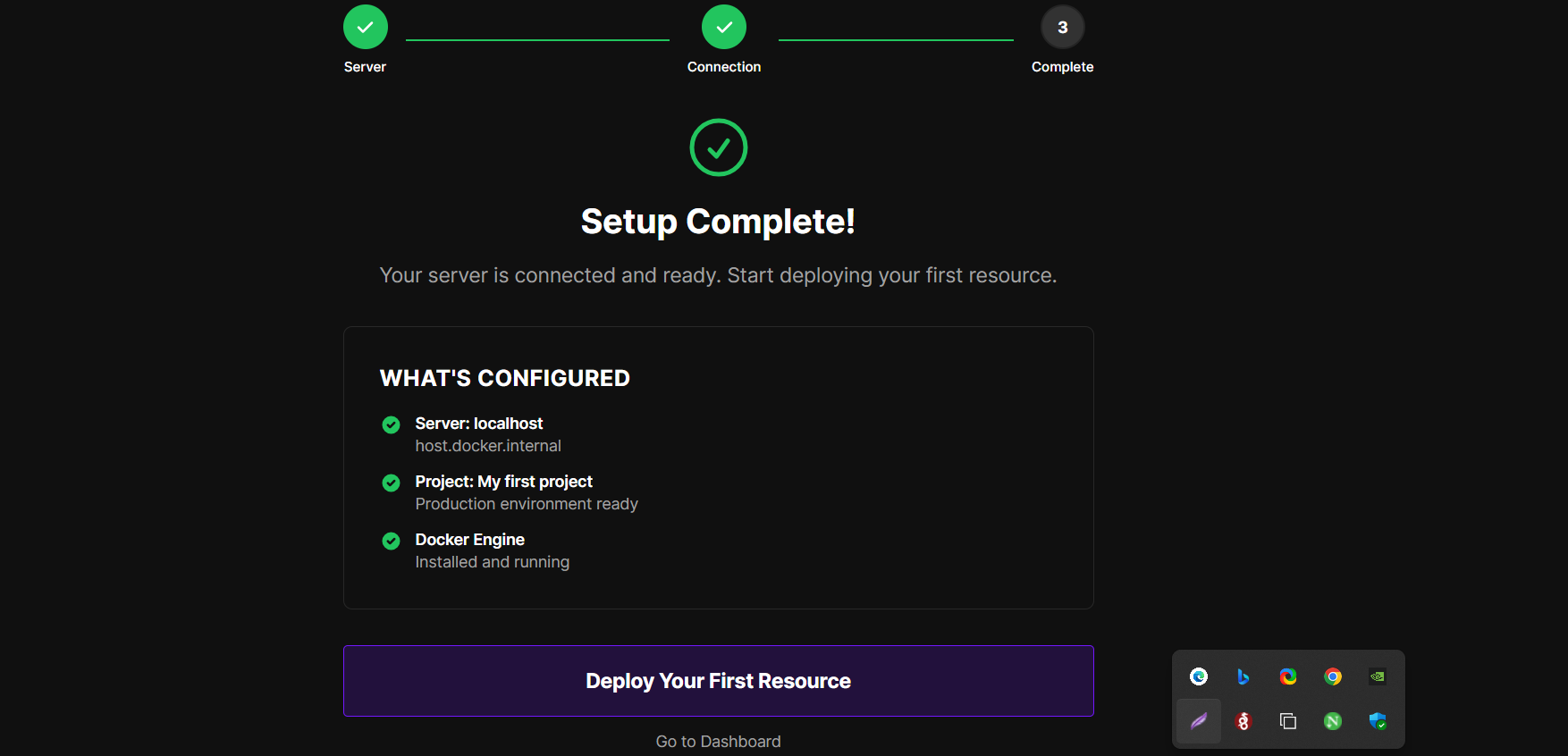
**6.3 Complete the Initial Setup**
After creating the Root User:
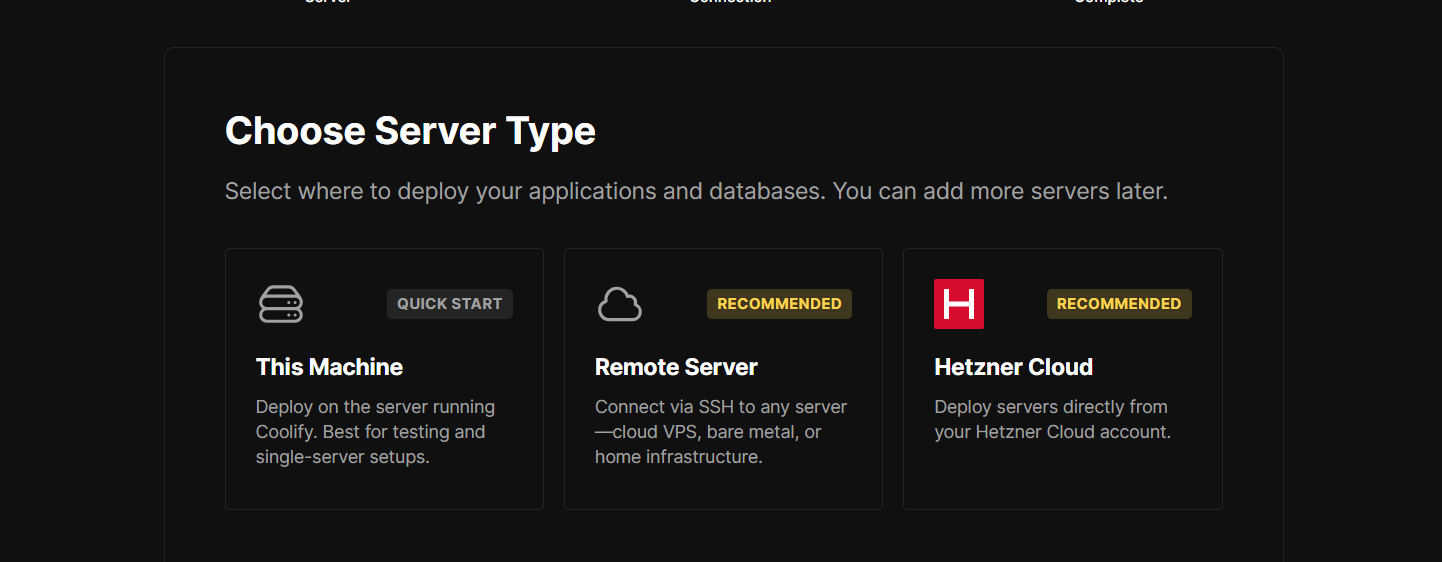
* You may be asked to choose the **Server Type**\
Select **"This Machine"** if you want to deploy apps on the same server where Coolify is installed.
* Optionally configure **Git Provider** (GitHub, GitLab, Bitbucket).\
You may skip this step and configure it later if not required immediately.
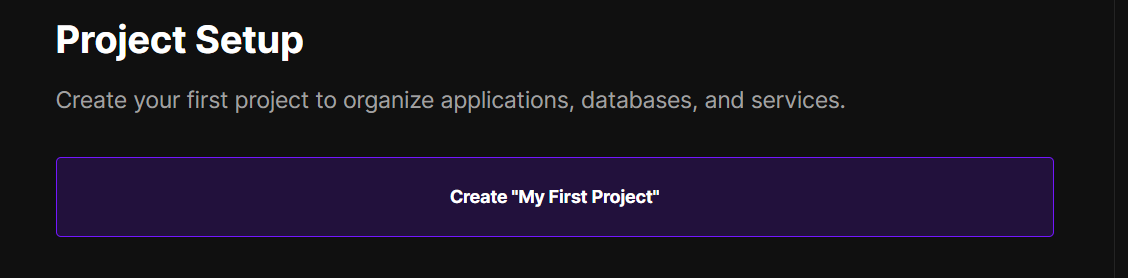
**6.4 Access the Final Dashboard**
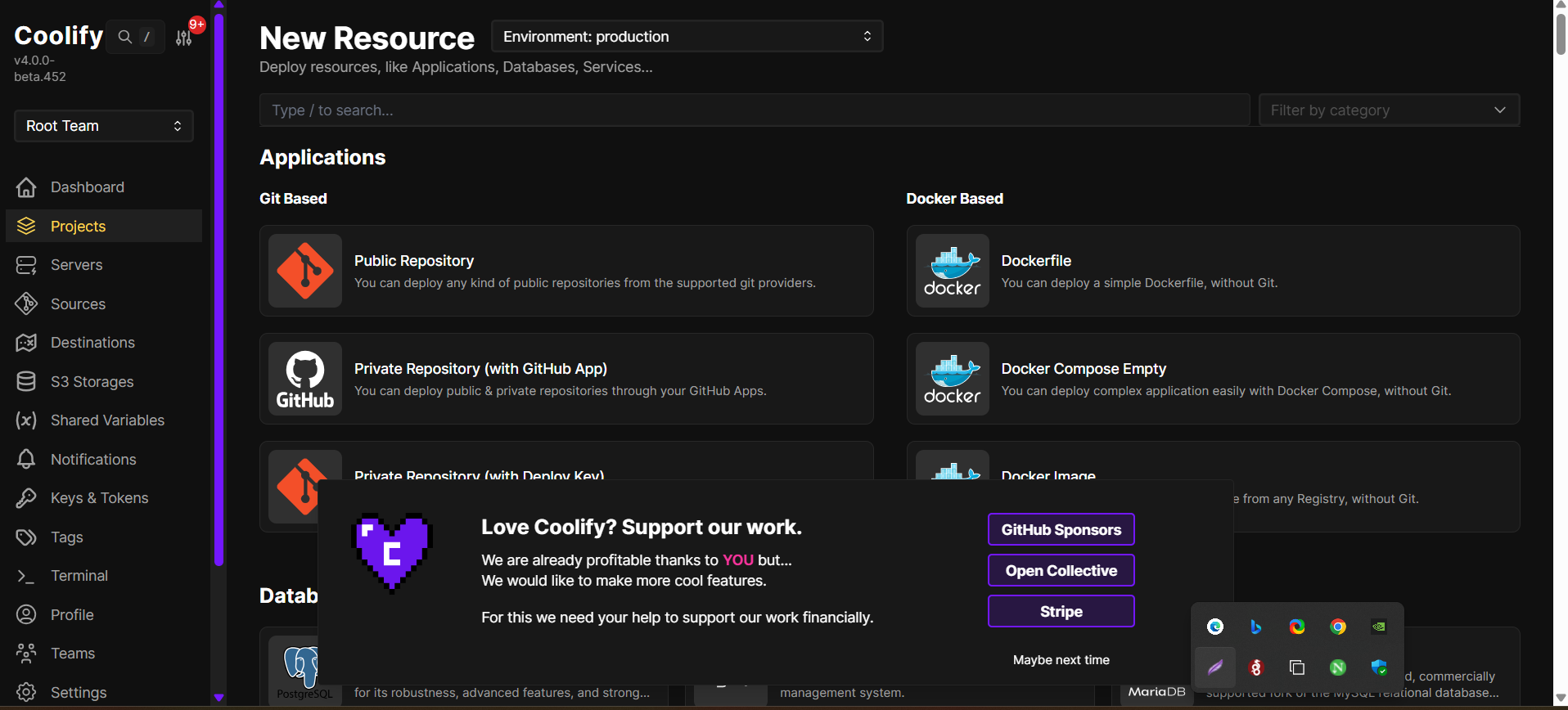
Once the setup is completed, Coolify will automatically redirect you to the **Main Dashboard**, where you can:
* View server health
* Deploy applications
* Create databases
* Connect Git repositories
* Access logs and activities
* Manage users and settings