# Create a Plesk Instance from Neevcloud Marketplace

Navigate to the Neevcloud dashboard, select Server, and click Create Cloud Serve&#x72;**.**

<figure><img src="https://1876135298-files.gitbook.io/~/files/v0/b/gitbook-x-prod.appspot.com/o/spaces%2FEC5NwtFshv6EATOemuUn%2Fuploads%2FR7TvbQc7iVukG6OcbB6g%2Fimage.png?alt=media&#x26;token=c44b192b-9436-4f22-b789-991b728e35ea" alt=""><figcaption></figcaption></figure>

\
Select Image
------------

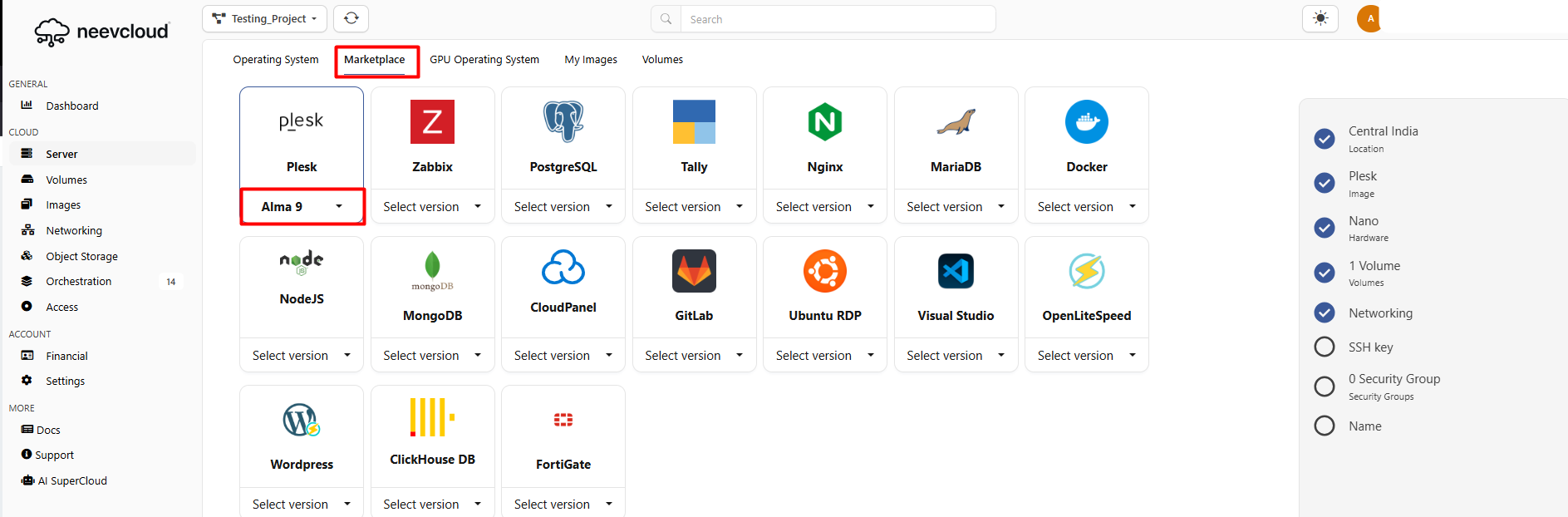
#### Select the Marketplace <a href="#select-the-marketplace" id="select-the-marketplace"></a>

To navigate the marketplace, select Plesk and choose the version.

<figure><img src="https://1876135298-files.gitbook.io/~/files/v0/b/gitbook-x-prod.appspot.com/o/spaces%2FEC5NwtFshv6EATOemuUn%2Fuploads%2Fti2KS0CAdafE0JkLaccz%2Fimage.png?alt=media&#x26;token=5738fc22-4eed-494c-bd93-1c941a8d9876" alt=""><figcaption></figcaption></figure>

### Hardware Configuration <a href="#hardware-configuration" id="hardware-configuration"></a>

Users can choose different CPU and RAM configurations to personalize their system. General Purpose and Memory Optimized, CPU Optimized, GPU Enabled, and Smart Servers are the options that are offered. Click these [links ](https://docs.neevcloud.com/neevcloud-products/computes/getting-started-launch-vms#specifications)for further information.

<figure><img src="https://1876135298-files.gitbook.io/~/files/v0/b/gitbook-x-prod.appspot.com/o/spaces%2FEC5NwtFshv6EATOemuUn%2Fuploads%2FLjZIpWMC7599bLS0TA94%2Fimage.png?alt=media&#x26;token=4efec48b-28dc-430f-97f6-278935c96b52" alt=""><figcaption></figcaption></figure>

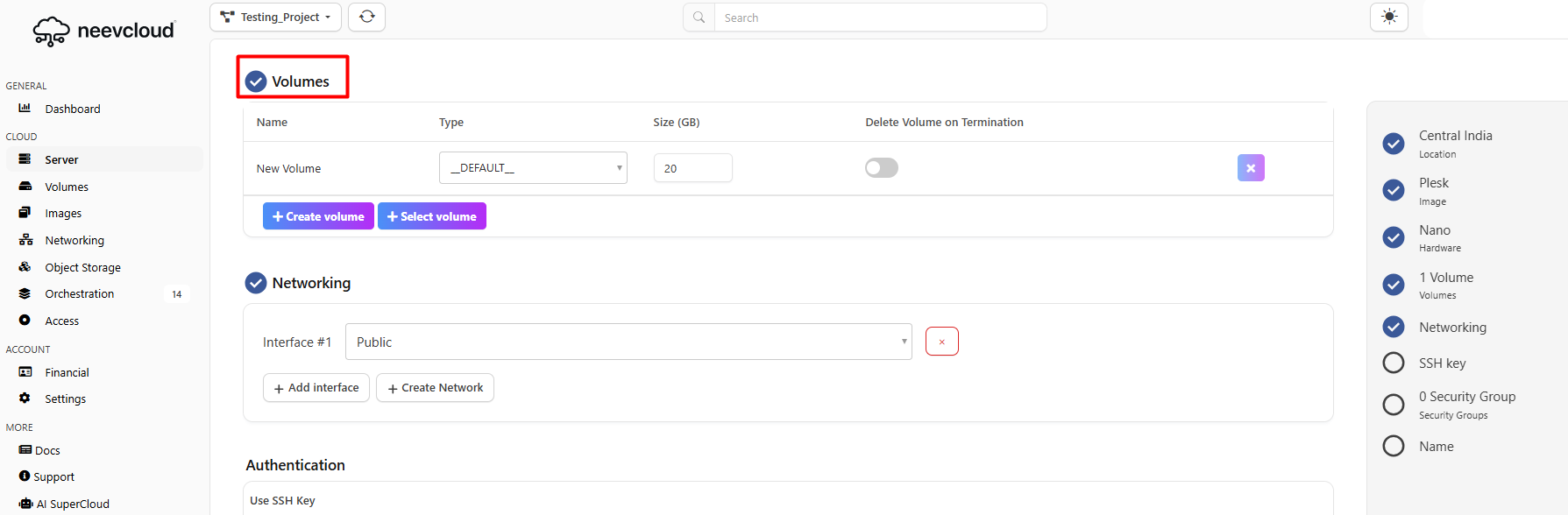
### Select the volumes <a href="#select-the-volumes" id="select-the-volumes"></a>

Choose the volume size that will be your root disk.

<figure><img src="https://1876135298-files.gitbook.io/~/files/v0/b/gitbook-x-prod.appspot.com/o/spaces%2FEC5NwtFshv6EATOemuUn%2Fuploads%2FPisJlgZUoQvXMdZgjB3L%2Fimage.png?alt=media&#x26;token=08ce3799-8bfc-45f1-84b5-65d93771ddea" alt=""><figcaption></figcaption></figure>

### Network configuration <a href="#network-configuration" id="network-configuration"></a>

* **Public Network:** A public network is a type of network that is open and accessible to anyone, allowing users to connect freely. If you select a public network, you must configure it to allow public access to your server.
* **Private Network:-** A private network is accessible only to specific individuals or organizations, ensuring that the general public cannot connect to it. If you choose a private network, you must first create a Private network.

<figure><img src="https://1876135298-files.gitbook.io/~/files/v0/b/gitbook-x-prod.appspot.com/o/spaces%2FEC5NwtFshv6EATOemuUn%2Fuploads%2FqWILGcTH25LHlv31hWAN%2Fimage.png?alt=media&#x26;token=868015c9-d38b-4a59-893b-26f62951546d" alt=""><figcaption></figcaption></figure>

### Authentication <a href="#authentication" id="authentication"></a>

* **SSH\_KEY:-** An SSH KEY is a source access credential used in the Secure Shell(SSH) protocol, consisting of a pair of public and private keys that authenticate users and establish encrypted communication between a client and a server. It would be best if you created an SSH key to access your server.

Access to your server requires an SSH\_KEY. It is mandatory

* **Password:-** A password is a secret string of characters used to verify a user's identity and grant access to a system or resource

To create a secure password with 10 characters, including symbols, use a mix of uppercase and lowercase letters, include numbers, and add special characters like `!`, `$`, `#`, etc. Avoid using easily guessable info like names or birthdates.

**Generating SSH KEY**

If you already have an SSH key, select it. If you don't have one, please follow this [link](https://docs.neevcloud.com/neevcloud-products/access-details/ssh-key) to generate an SSH key.

<figure><img src="https://1876135298-files.gitbook.io/~/files/v0/b/gitbook-x-prod.appspot.com/o/spaces%2FEC5NwtFshv6EATOemuUn%2Fuploads%2FLZfxwLFnIxq3Ehrkxou4%2Fimage.png?alt=media&#x26;token=926e16bb-f2d2-40f3-8999-23bf19198ef2" alt=""><figcaption></figcaption></figure>

### Add Security Group <a href="#add-security-group" id="add-security-group"></a>

Click on Add Security Group. Ensure the required ports for Plesk are allowed.

Enter the server name > Click 'Create Server'

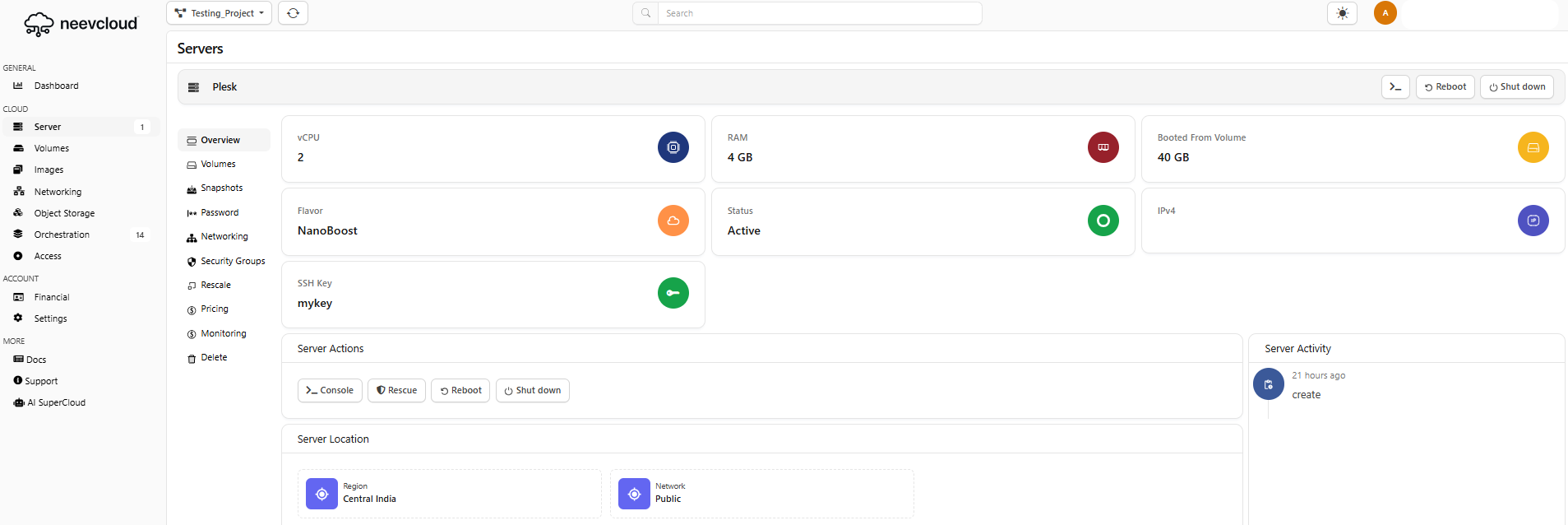
Once your instance is created, its status will change to Active, and additional details will be displayed.

<figure><img src="https://1876135298-files.gitbook.io/~/files/v0/b/gitbook-x-prod.appspot.com/o/spaces%2FEC5NwtFshv6EATOemuUn%2Fuploads%2FuUNAgwe2EYQ3m5VW9T29%2Fimage.png?alt=media&#x26;token=9bbdb834-c4b0-40eb-bae2-a1ee861cb0bf" alt=""><figcaption></figcaption></figure>

<figure><img src="https://1876135298-files.gitbook.io/~/files/v0/b/gitbook-x-prod.appspot.com/o/spaces%2FEC5NwtFshv6EATOemuUn%2Fuploads%2FzvnqXwjst1d6YnPduf8O%2Fimage.png?alt=media&#x26;token=86504896-c03e-4e5a-b49a-9d078018f064" alt=""><figcaption></figcaption></figure>

### SSH <a href="#ssh" id="ssh"></a>

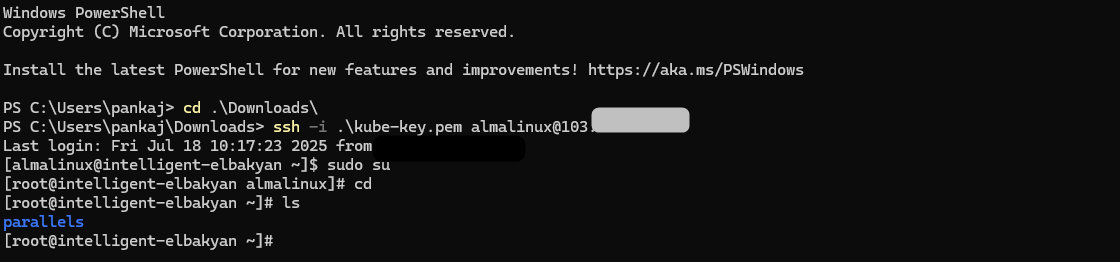
First, access the server via SSH using your SSH key. Also, if you want to access it by using Putty, follow these [links](https://docs.neevcloud.com/neevcloud-guide/neevcloud-knowledgebase/how-to-use-putty-for-ssh-key-based-authentication). Open the command prompt and navigate to the directory where you downloaded the SSH files.

{% hint style="info" %}
NOTE: If your SSH is not functioning, you have to set the [permission](https://docs.neevcloud.com/neevcloud-products/computes/getting-started-launch-vms#permissions).
{% endhint %}

```
cd .\Downloads\
```

```
ssh -i  your_ssh_key  almalinux@your_server_IP_add
```

<figure><img src="https://1876135298-files.gitbook.io/~/files/v0/b/gitbook-x-prod.appspot.com/o/spaces%2FEC5NwtFshv6EATOemuUn%2Fuploads%2FuYRopPoURInHBhfIZXPr%2Fimage.png?alt=media&#x26;token=b2c7080b-645c-49c4-872f-fe4f30b23e57" alt=""><figcaption></figcaption></figure>

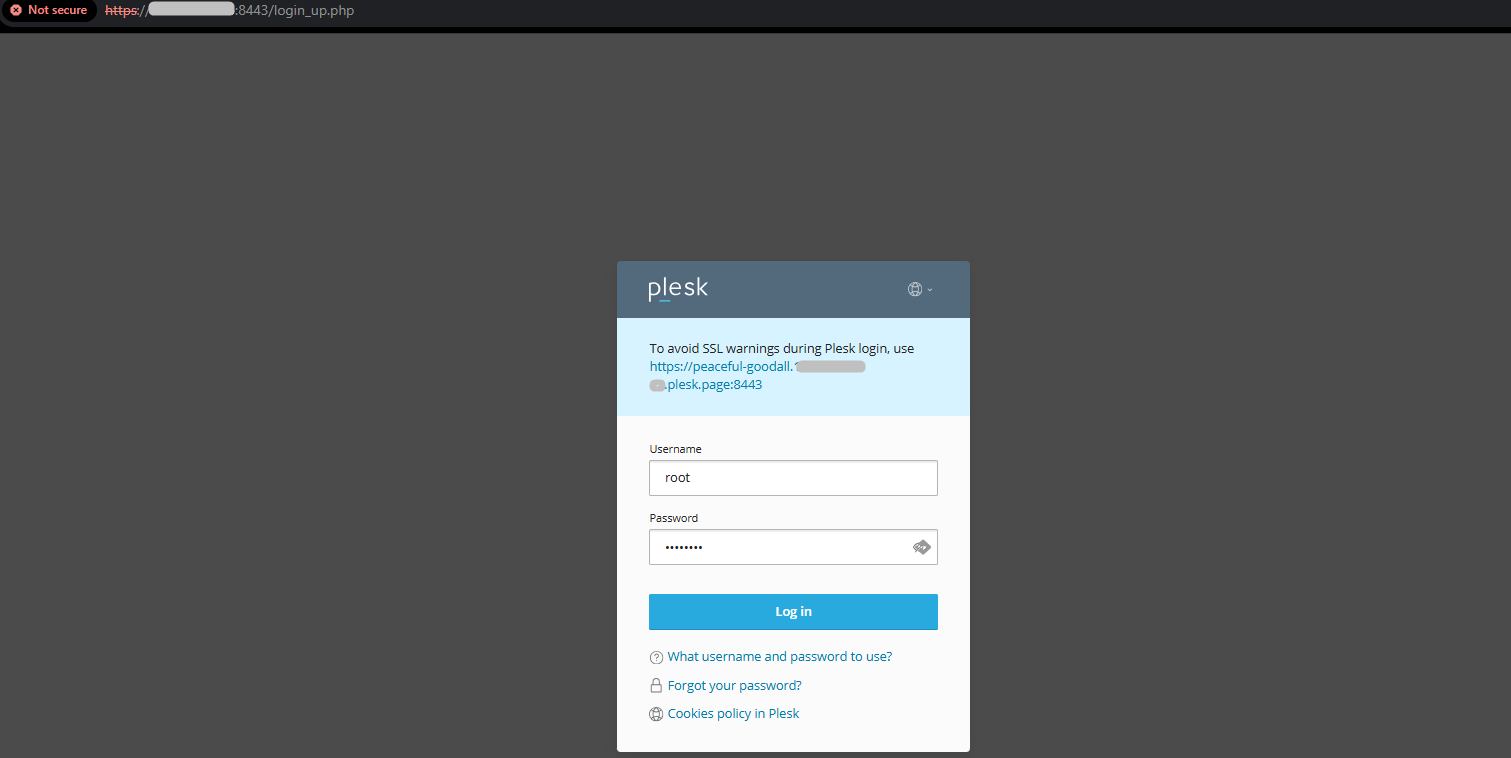
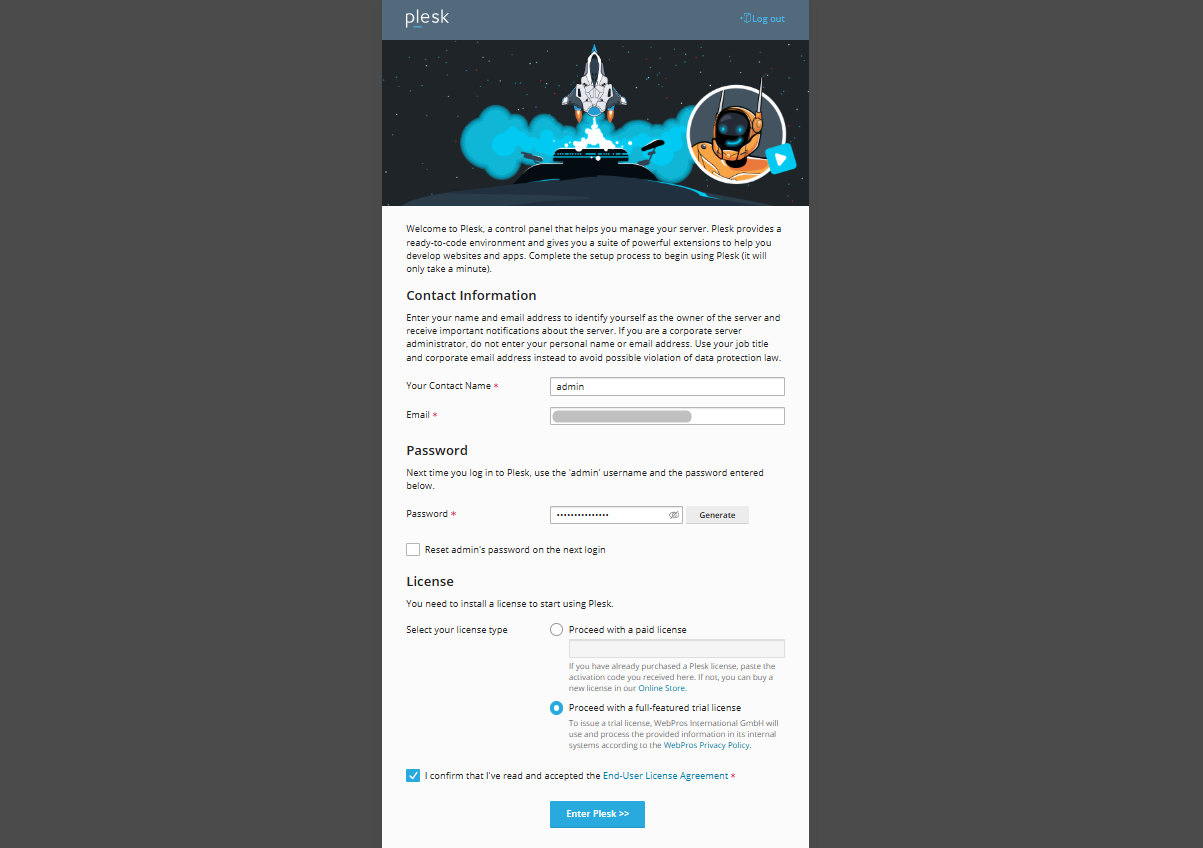
To log in to the Plesk server, you must first create a password for the root user.

<figure><img src="https://1876135298-files.gitbook.io/~/files/v0/b/gitbook-x-prod.appspot.com/o/spaces%2FEC5NwtFshv6EATOemuUn%2Fuploads%2F37Y6zmQL0WIGIBGWJnOh%2Fimage.png?alt=media&#x26;token=9ee3a624-db97-4fd4-9ebb-b144a7ebe9bd" alt=""><figcaption></figcaption></figure>

<figure><img src="https://1876135298-files.gitbook.io/~/files/v0/b/gitbook-x-prod.appspot.com/o/spaces%2FEC5NwtFshv6EATOemuUn%2Fuploads%2FRGd1n3YwSGGVcWIkxRkY%2Fimage.png?alt=media&#x26;token=d5cf7aca-fb7e-4161-8a18-aaea59f4aa80" alt=""><figcaption></figcaption></figure>

<figure><img src="https://1876135298-files.gitbook.io/~/files/v0/b/gitbook-x-prod.appspot.com/o/spaces%2FEC5NwtFshv6EATOemuUn%2Fuploads%2FrSYd8yFVxexp5motmO53%2Fimage.png?alt=media&#x26;token=f700e19d-e2ea-4cc5-a4b6-909711489e59" alt=""><figcaption></figcaption></figure>

<figure><img src="https://1876135298-files.gitbook.io/~/files/v0/b/gitbook-x-prod.appspot.com/o/spaces%2FEC5NwtFshv6EATOemuUn%2Fuploads%2FL7KdWXezMBnzSZpTL0Ng%2Fimage.png?alt=media&#x26;token=4eca2055-6ebd-489a-8d36-641cc3f52f51" alt=""><figcaption></figcaption></figure>